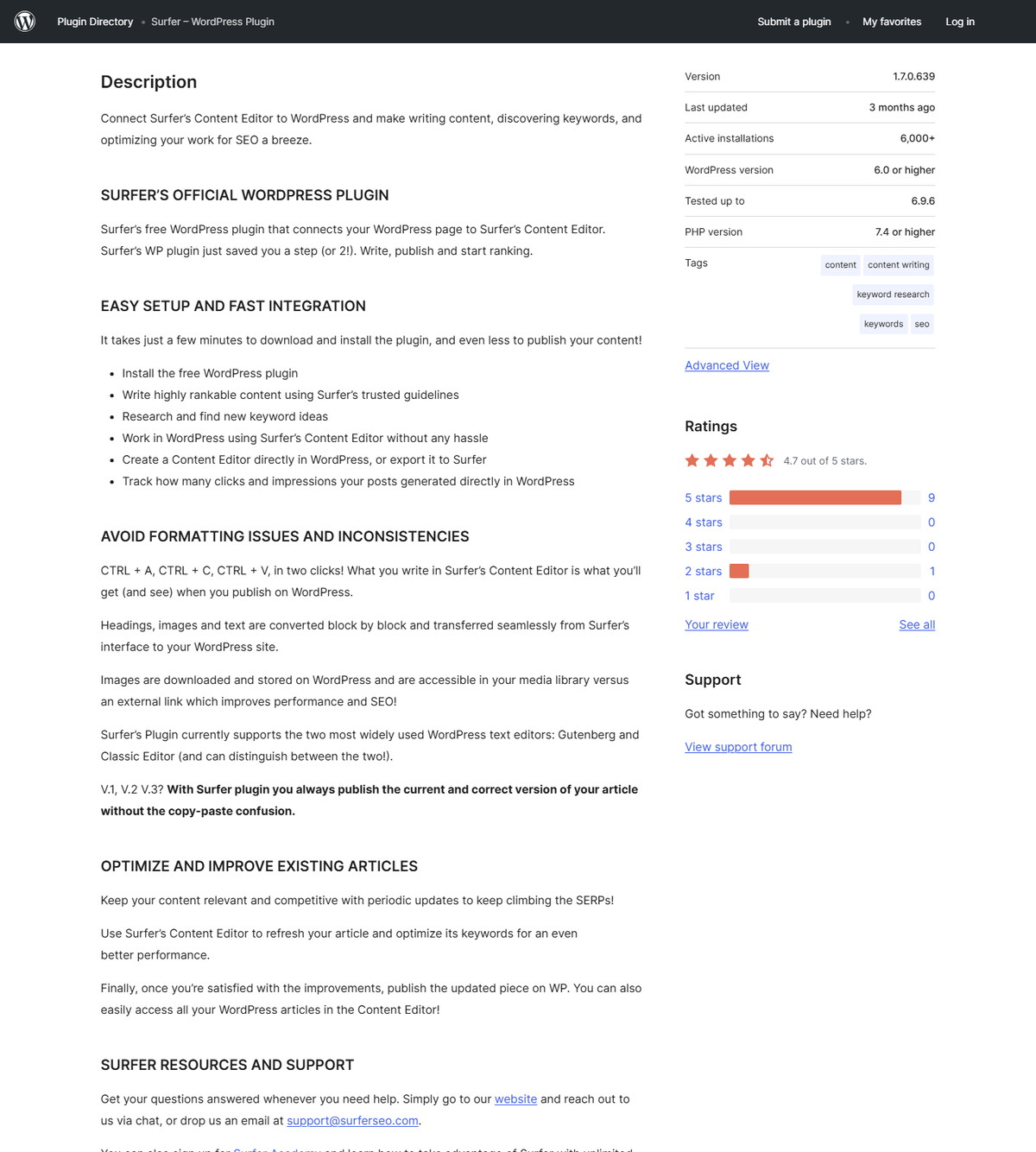
The Surfer WordPress plugin connects your WordPress site to Surfer's Content Editor in both directions: export optimized drafts from Surfer into WordPress, import WordPress posts into a Content Editor, and use Surfer's guidelines sidebar while writing directly in WordPress. The plugin file is free, but full use requires an active Surfer subscription. The official WordPress.org listing describes it as Surfer's free plugin that connects a WordPress page to the Content Editor, with block-by-block content transfer and images stored in the WordPress media library.
| At-a-glance | Details |
|---|---|
| Tool | Surfer SEO |
| What it does | Two-way export and import between Content Editor and WordPress |
| Plugin price | Free to download; full use requires an active Surfer subscription |
| Editors supported | Gutenberg, Classic Editor, and Elementor per install docs |
| Requirements | PHP 7.4+; WordPress 6.0+ (tested up to 6.9 per WordPress.org) |
| Extra features | Guidelines sidebar, keyword research module, GSC tracking |
| Listing snapshot | Version 1.7.0.639, 6,000+ active installations (2026-08-10) |
| Check date | August 10, 2026 |
Quick Answer: What Does the Surfer WordPress Plugin Do?
It moves content between Surfer's Content Editor and WordPress, and it brings Surfer's optimization guidance into the WordPress editor itself. Surfer documents three workflows: export from Content Editor to WordPress, import from WordPress into a Content Editor, and writing with the Content Editor guidelines sidebar directly in WordPress.
- Export: send an optimized draft from the Content Editor to a new WordPress draft or an existing post or page.
- Import: create or connect a Content Editor for a WordPress post, then optimize it in Surfer.
- Write in place: open the Surfer tab in a WordPress post, connect an editor, and follow the guidelines sidebar without leaving WordPress.
- Research: the plugin adds a keyword research module beside the editor with search volume, similarity, and cost-per-click data.
If this workflow fits your publishing process, check Surfer's current access options before installing.
What the WordPress Plugin Does (and What It Is Not)
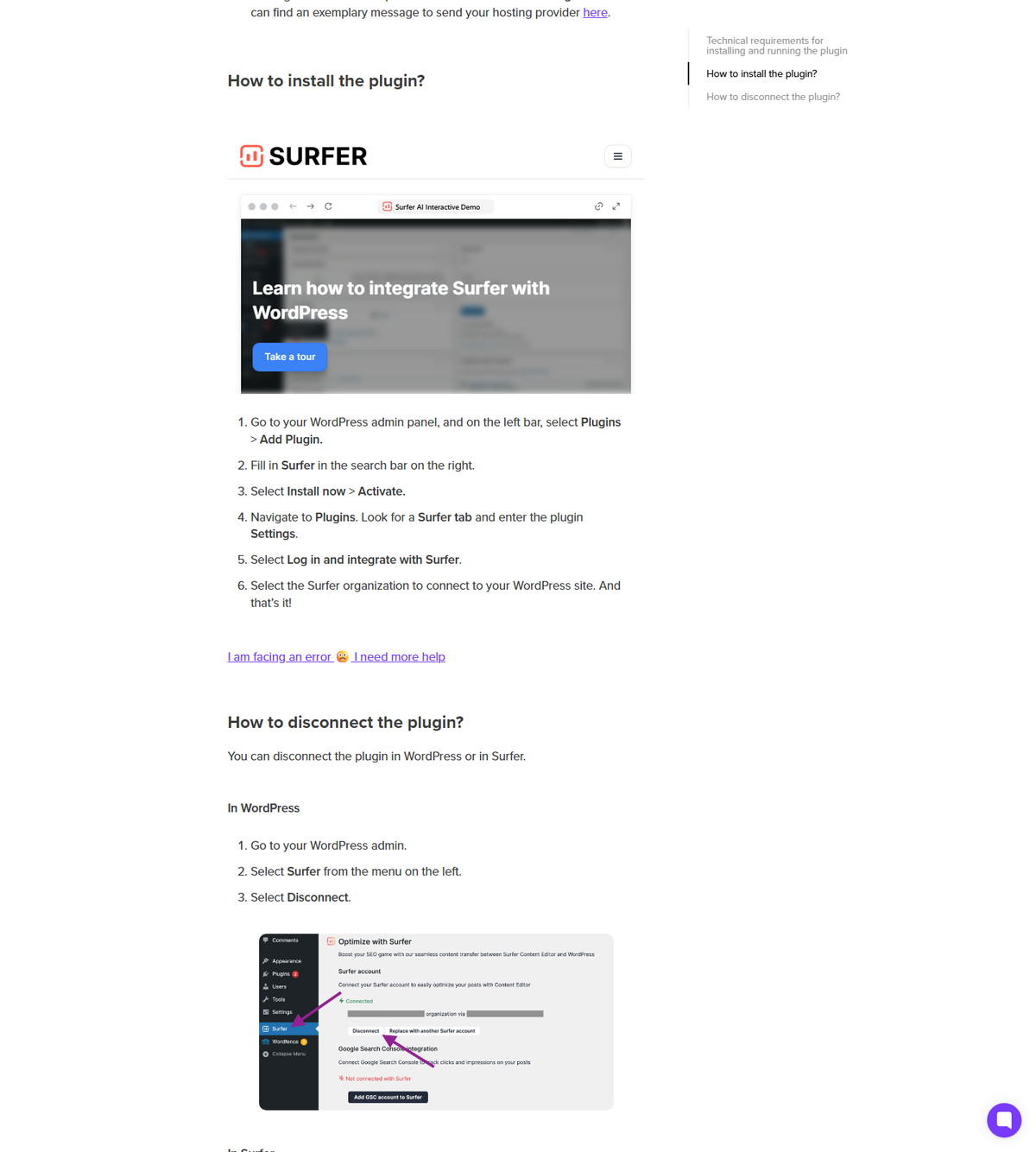
The plugin is a CMS integration, not a browser extension. Surfer's install guide describes a plugin that works in two ways: exporting from Content Editor to WordPress posts or pages, and importing WordPress posts or pages into a new Content Editor. The WordPress.org listing adds that headings, images, and text are converted block by block, and that images are downloaded into the WordPress media library instead of being hotlinked.
| Workflow | Where it starts | What happens |
|---|---|---|
| Export to WordPress | Content Editor, Publish and Export tab | Sends the draft to a new or existing WordPress post or page |
| Import into Surfer | WordPress Surfer tab, Optimize with Surfer | Creates or connects a Content Editor for the post |
| Write in place | WordPress editor with connected editor | Shows the guidelines sidebar while you write |
Boundaries that matter:
- It is not Keyword Surfer (the free research extension) and not the Google Docs extension.
- It does not replace the Content Editor; it connects to it.
- One WordPress page can connect to one Surfer account at a time, while one Surfer account can connect to multiple WordPress pages.
- The plugin is free to download, but an active Surfer subscription is required for full use.
Requirements Before Installing
You need WordPress 6.0 or higher with PHP 7.4 or newer, plus an active Surfer subscription for full functionality. These requirements come from the WordPress.org listing and Surfer's install guide.
<div class="scalewitai-table-scroll" role="region" aria-label="Surfer SEO WordPress Plugin guide data table” style=”max-width:100%”>| Requirement | Documented value | Source |
|---|---|---|
| WordPress version | 6.0 or higher; tested up to 6.9 | WordPress.org listing |
| PHP version | At least 7.4 | Surfer install guide |
| Editors | Gutenberg, Classic Editor, Elementor | Surfer install guide |
| Surfer subscription | Required for full use | Surfer install guide |
| Surfer account connection | One account per page | Surfer install guide |
Two hosting caveats are documented: WordFence can interfere with the plugin unless WordPress application passwords are allowed, and GoDaddy or Cloudflare hosting may block the plugin until the SurferSEO WP Plugin user agent is whitelisted.
How to Install and Connect the Plugin
Install the plugin from the WordPress admin, activate it, and connect it to your Surfer organization. Surfer's install guide walks through the steps from the WordPress admin panel.
- In WordPress admin, go to Plugins, then Add Plugin.
- Search for Surfer, then select Install now and Activate.
- Open the Surfer tab in your plugins list and enter the plugin Settings.
- Select Log in and integrate with Surfer.
- Choose the Surfer organization to connect to your WordPress site.
To disconnect later, use the Disconnect option in the WordPress Surfer menu or in Surfer's plugin page for the domain. A page can only be connected to one Surfer account at a time, and reconnecting after reinstallation is documented as a required step for several fixes.
How to Export Content from Surfer to WordPress
Open the Content Editor's Publish and Export tab, select WordPress, choose the destination, and confirm. Surfer documents the export flow step by step.
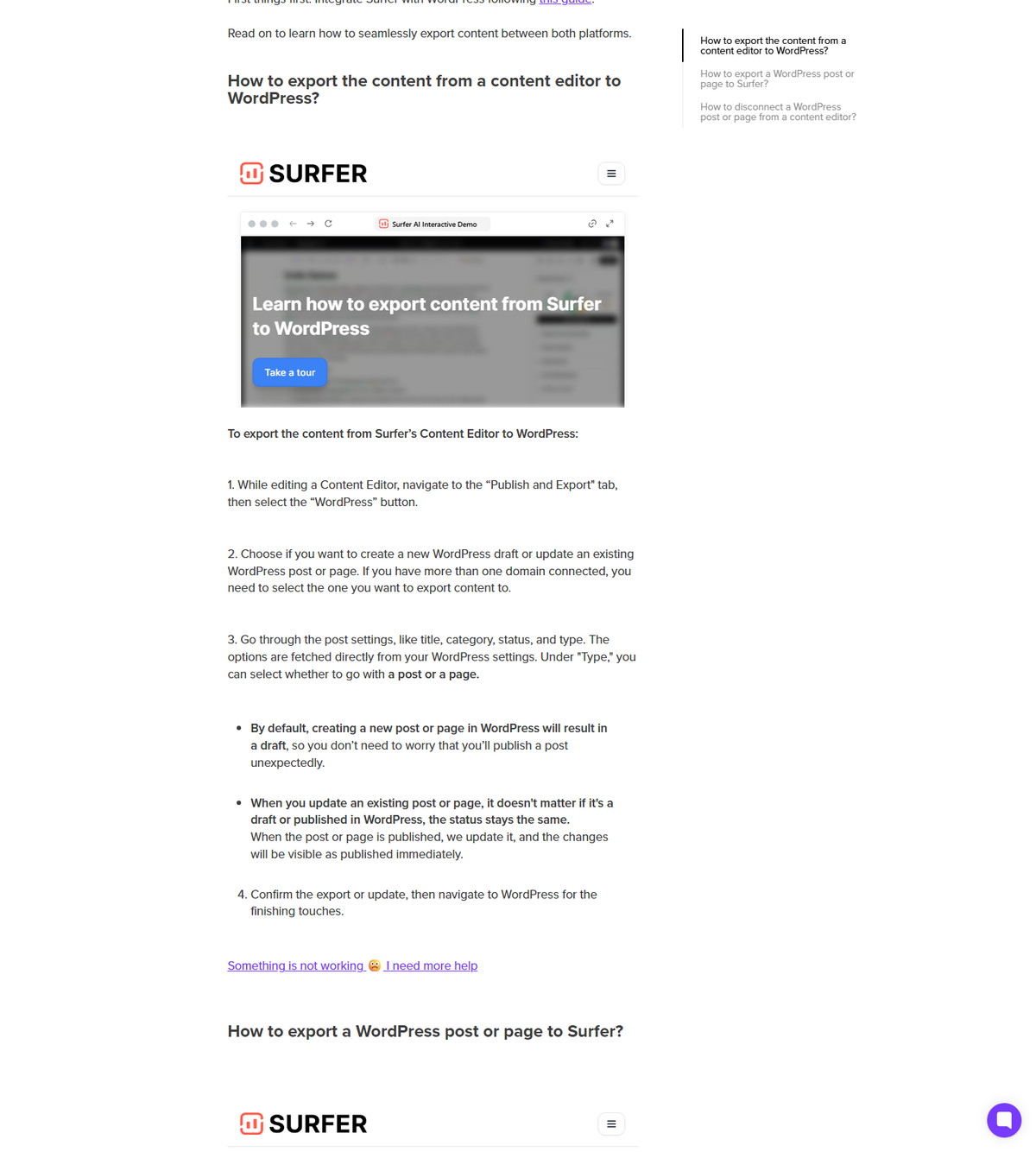
- While editing a Content Editor, open the Publish and Export tab and select the WordPress button.
- Choose whether to create a new WordPress draft or update an existing WordPress post or page. If you have more than one domain connected, select the destination domain.
- Review post settings such as title, category, status, and type. The options are fetched from your WordPress settings, and the type can be a post or a page.
- Confirm the export, then finish in WordPress.
Two defaults are documented: a new post or page is created as a draft, so nothing is published unexpectedly, and updating an existing item keeps its current status, meaning a published post updates and shows changes immediately.
How to Import WordPress Content into Surfer
Open a WordPress post or page, use the Surfer tab, and create or connect a Content Editor for it. Importing counts against your Content Editor limit only when you create a new editor.
- Open the WordPress post or page you want to optimize.
- Open the Surfer tab and select Optimize with Surfer.
- Choose to create a new Content Editor, which takes one usage from your subscription limit and connects it to the post or page, or connect an already-existing Content Editor.
- After the connection, start editing in Surfer or stay in WordPress.
If the WordPress content changes later, select Export on the post or page to push the newest version into the previously connected Content Editor. Surfer documents that this refresh does not count toward your Content Editor limit.
How to Write and Optimize Directly in WordPress
Connect a Content Editor to a WordPress post and the guidelines sidebar appears in the editor, so you can follow Surfer's guidance without leaving WordPress. Surfer's sidebar article documents this workflow.
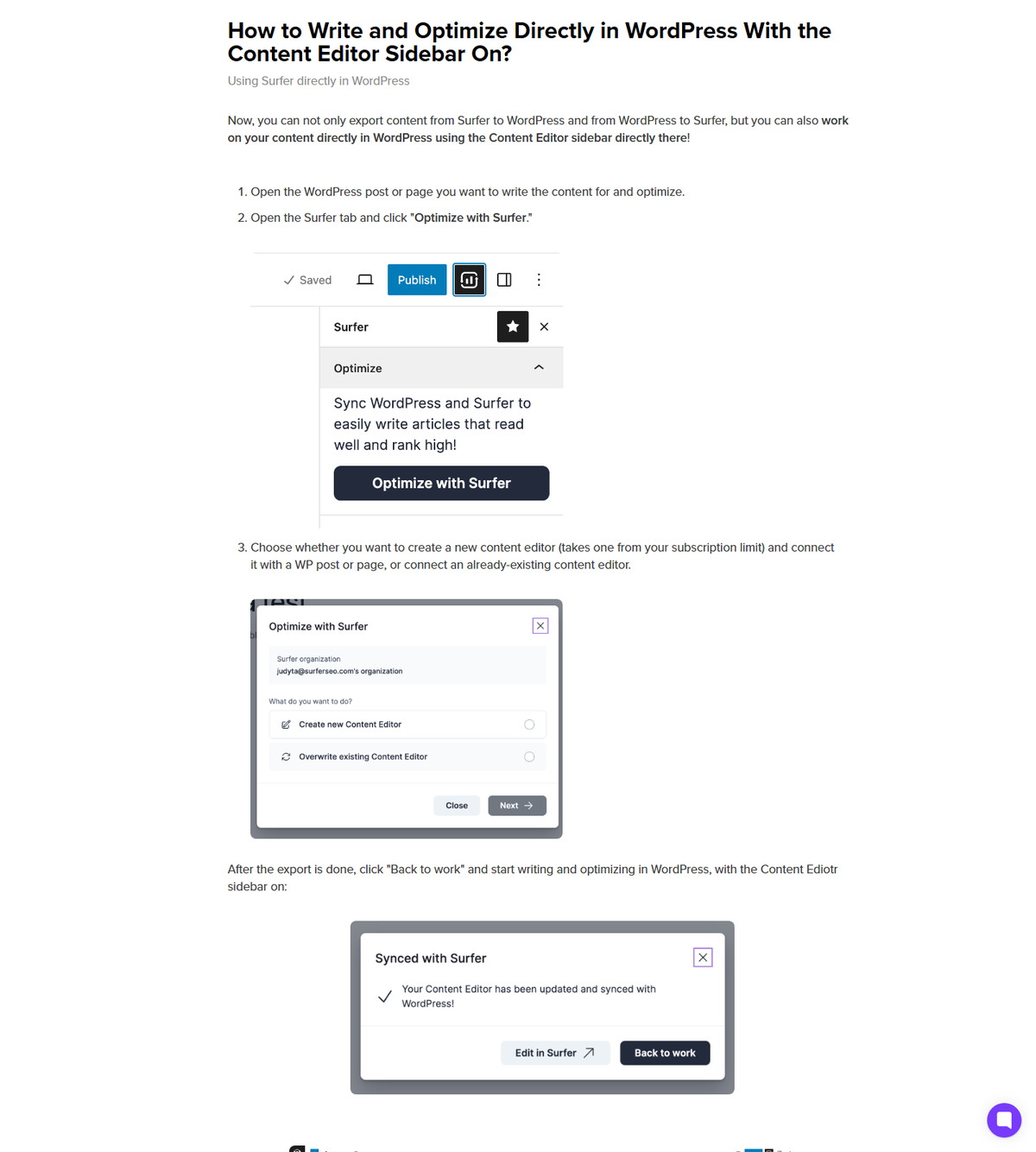
The flow mirrors the import steps: open the post, open the Surfer tab, click Optimize with Surfer, and choose a new or existing Content Editor. After the connection, you can write in WordPress with the guidelines sidebar active, covering terms, structure, and score feedback in the editor itself.
The WordPress.org listing describes the benefit as avoiding formatting inconsistencies: what you write in the Content Editor is what you get in WordPress, with headings, images, and text converted block by block, and images downloaded into the media library.
Keyword Research in the WordPress Editor
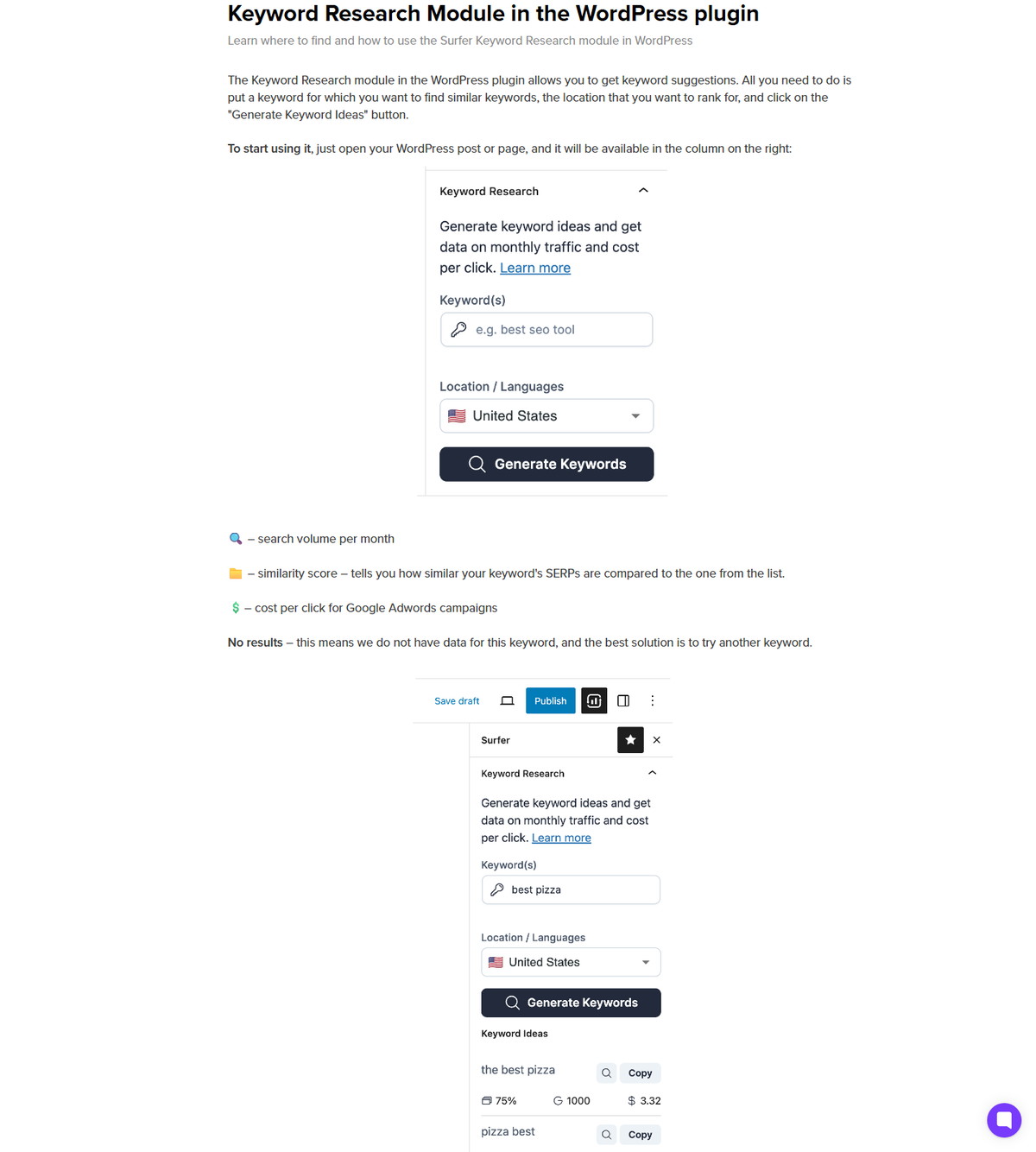
The plugin includes a keyword research module in the WordPress editor sidebar that generates keyword suggestions for a location. Surfer's module article documents the data points shown for each suggestion.
- Enter a keyword and a target location, then click Generate Keyword Ideas.
- Each suggestion shows search volume per month, a similarity score that compares the keyword's SERP with yours, and the cost per click for Google Ads campaigns.
- If no data exists for a keyword, Surfer documents the fix as trying another keyword.
The module sits in the same right-hand column as the guidelines, so research and optimization happen in one place.
Troubleshooting WordPress Plugin Issues
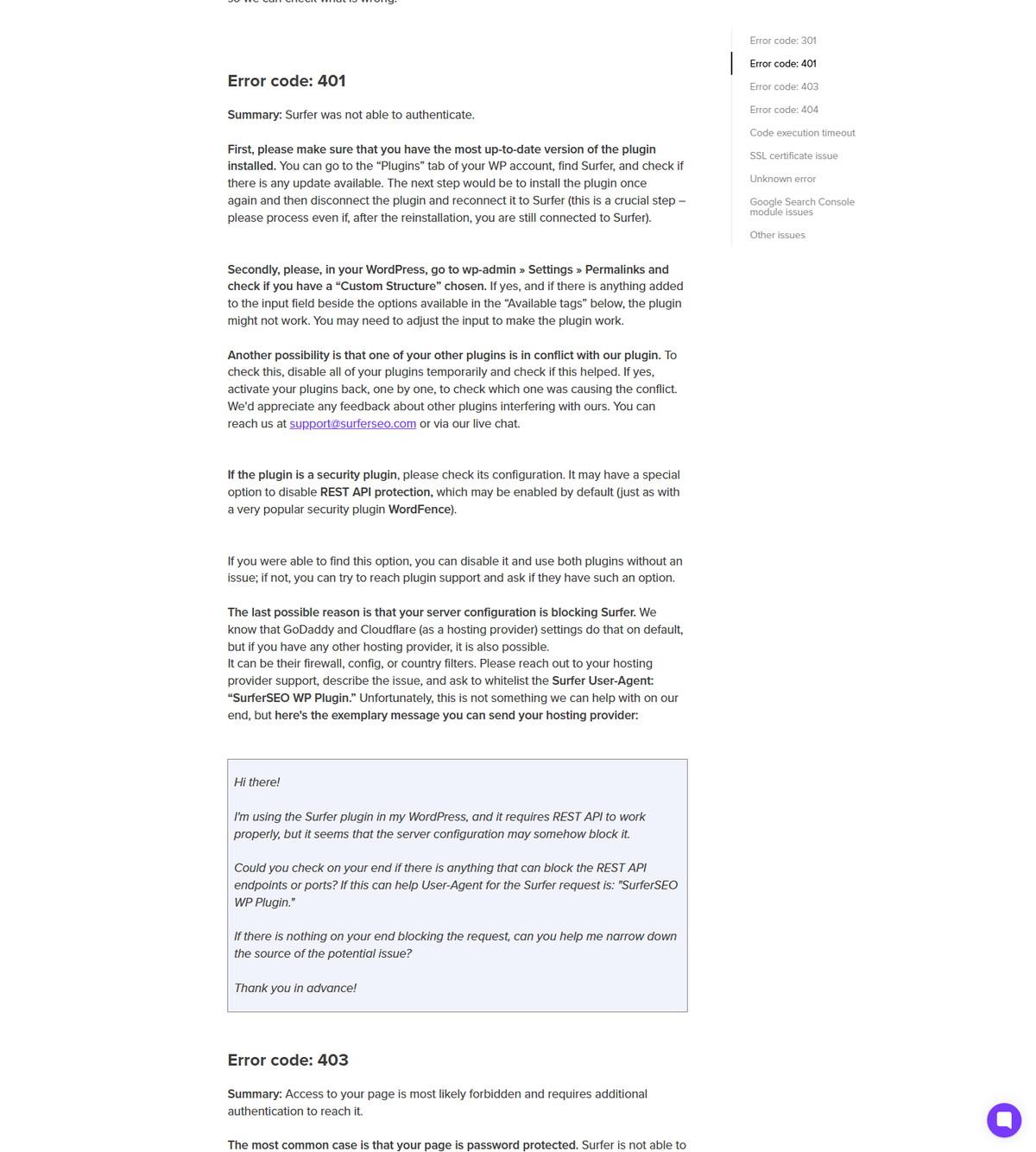
Start with Surfer's troubleshooting guide, which maps error codes to concrete fixes. The documented codes cover redirection, authentication, access, and endpoint problems.
| Error code | Documented meaning | First documented fix |
|---|---|---|
| 301 | URL redirecting; REST API cannot follow it | Reconnect with the exact URL; whitelist the SurferSEO WP Plugin user agent |
| 401 | Surfer could not authenticate | Update and reconnect the plugin; check permalink structure and plugin conflicts |
| 403 | Access forbidden; page likely protected | Remove password protection or whitelist the user agent; check maintenance mode |
| 404 | Endpoint not found | Update and reconnect; refresh permalinks; clear caches; check conflicts |
Other documented causes apply across codes: maintenance mode disables the REST API, security plugins such as WordFence can block application passwords or REST endpoints, GoDaddy and Cloudflare may block the user agent by default, and conflicting plugins or themes can prevent endpoints from registering. The full troubleshooting article covers each code with detailed steps.
WordPress Plugin vs Other Surfer Products
The WordPress plugin is one of several Surfer surfaces, and it is the only one that connects to the WordPress editor directly. The boundaries below come from Surfer's official documentation.
| Product | Primary job | Relationship to the plugin |
|---|---|---|
| WordPress plugin | Two-way export and import, guidelines sidebar in WP | The CMS integration itself |
| Content Editor | Write and score content with guidelines | What the plugin connects to |
| Surfer AI | Generate articles from guidelines | Generates inside Content Editor, exportable to WP |
| Keyword Surfer | Free keyword research extension | Separate Chrome extension, not the plugin |
| Google Docs extension | Guidelines in Google Docs | Separate writing surface, not WordPress |
| Content Audit | Monitor existing pages | Separate tracking product |
The practical rule: connect the plugin when the workflow must touch WordPress directly, use Content Editor for the writing and scoring, and use the Chrome extensions only when you work in Google Search or Google Docs.
FAQ
Is the Surfer WordPress plugin free?
Yes, the plugin is free to download, but full use requires an active Surfer subscription. Creating new Content Editors also counts against your subscription limit.
Does the Surfer plugin work with Elementor?
Surfer's install guide lists Gutenberg, Classic Editor, and Elementor as fully supported editors, while the WordPress.org listing highlights Gutenberg and Classic Editor. The troubleshooting article describes Elementor support as beta, so verify your setup if you use it.
Can I publish straight to WordPress from Surfer?
Yes. The Content Editor's Publish and Export tab includes a WordPress button that exports to a new draft or an existing post or page. New items default to draft, and updating an existing item preserves its current status.
Does exporting to WordPress create a published post?
No. Creating a new post or page through the export defaults to a draft. Updating an existing published post or page applies changes immediately while keeping its published status.
Can I use Surfer guidelines inside the WordPress editor?
Yes. After connecting a Content Editor, the Surfer tab in a WordPress post shows the guidelines sidebar, so you can write and optimize without leaving WordPress.
Why is my Surfer plugin not connecting?
Check the documented error codes: 301 means redirection, 401 means authentication failed, 403 means access is forbidden, and 404 means the endpoint was not found. Common causes are maintenance mode, security plugins like WordFence, and GoDaddy or Cloudflare blocking the SurferSEO WP Plugin user agent.
Is the WordPress plugin the same as the Surfer Chrome extension?
No. The WordPress plugin is a CMS integration for export, import, and the guidelines sidebar, while the Chrome extensions are separate products: Keyword Surfer for research and Surfer for Google Docs and ChatGPT for guided writing.