The Surfer SEO Content Editor is the on-page optimization workspace where you write or paste an article, follow real-time guidelines, and watch three scores update as you type. It analyzes top-ranking pages for your keyword and location, then guides structure, terms, headings, images, and coverage. It is not an AI article generator: that separate workflow is Surfer AI. Content Editor keeps the writing in your hands while the research and optimization signals come from Surfer's analysis of the current search results.
| At-a-glance | Details |
|---|---|
| Tool | Surfer SEO Content Editor |
| What it does | Provides real-time writing guidelines, Content Score, SEO Score, and AI Search Score |
| Main workflow | Create an editor, review competitors and terms, write or import content, optimize, and export |
| Key inputs | Target keywords, location, language, crawler type (desktop or mobile), competitors |
| Scoring | Content Score 0-100, combining SEO Score and AI Search Score |
| Best for | SEO professionals, content marketers, agencies, and enterprise teams that write or refresh content at scale |
| Skill level | Beginner to advanced; the wizard guides setup, while optimization judgment improves with experience |
Quick Answer: What Is the Surfer SEO Content Editor?
The Content Editor is Surfer's manual writing workspace that turns competitor analysis into step-by-step on-page guidelines. Surfer's official overview describes it as a tool that helps you write and optimize articles for higher search engine rankings, using Surfer's algorithms and top-ranking pages to recommend a relevant keyword list and article structure. As you write, the editor shows real-time feedback through Content Score, SEO Score, and AI Search Score.
- Use Content Editor when you want to write yourself while following research-backed guidelines.
- Use Surfer AI when you want Surfer to generate the outline and article from those guidelines automatically.
- Use the Google Docs extension or WordPress plugin when your team writes outside the Surfer app and needs the same guidelines in another surface.
If the Content Editor workflow fits your publishing process, check Surfer's current access options before creating queries or assigning writers.

What the Content Editor Does (and What It Is Not)
The Content Editor is a research and optimization layer for human writing, not a content generator. Surfer's overview is explicit about the boundary: Content Editor provides guidelines and frames for writing manually, keeps creative control with you, and saves time on research. Surfer AI, by contrast, takes the guidelines and automates article creation.
The editor does five jobs in one workflow:
- Keyword guidance: enter up to 20 keywords per editor, with suggested alternatives that show search volume and relevance.
- Competitor benchmarking: review the pages ranking for your keyword and location, then pick which ones shape your guidelines.
- Structure targets: word count, headings, paragraphs, and images, calculated from the competitors you select.
- Real-time scoring: Content Score, SEO Score, and AI Search Score update as you write.
- Publishing handoff: copy, download, or export the finished draft to WordPress, or share it by link.
It is also not Keyword Surfer (the free research extension), not the Google Docs extension, and not the WordPress plugin. Those products move Surfer's capabilities into other surfaces; Content Editor is where the guidelines themselves are created and scored.
Who Should Use the Content Editor
Teams that produce, refresh, or outsource search-oriented content benefit most, because the editor standardizes research into a repeatable brief. Surfer's own positioning targets SEO specialists, content managers and writers, agencies, in-house teams, eCommerce sites, and enterprise users.
- SEO professionals use it to align drafts with what currently ranks and to audit coverage gaps before publishing.
- Content marketers use it to brief writers with concrete targets instead of vague instructions.
- Agencies use it to hand editors to freelance writers via shareable links without exposing the Surfer account.
- Enterprise teams use it to keep tone, terminology, and topic coverage consistent across many writers, with version history and comments for review.
The editor is less valuable for teams that publish only a few short updates a month, because the deep analysis and guideline review add setup time per article.
What You Need Before Creating a Content Editor
You need an active Surfer subscription, a target keyword, and a location and language for the SERP analysis. Surfer documents that every successfully created Content Editor counts as a single usage against your limit, depending on your subscription, so plan editor creation like a metered resource.
<div class="scalewitai-table-scroll" role="region" aria-label="Surfer SEO Content Editor guide data table” style=”max-width:100%”>| Requirement | What Surfer documents | Notes |
|---|---|---|
| Surfer account and subscription | Required for Content Editor creation and scoring | Editors count against the plan limit |
| Target keyword | One main keyword is usually enough | Up to 20 keywords per editor allowed |
| Location and language | Selected during setup | Determines which Google SERP is analyzed |
| Crawler type | Desktop or mobile | Changes the analysis baseline |
| Competitor pages | At least 3 unique domains required for scoring | Default picks 5 of the top 10 by Content Score |
| Google Search Console | Only for automated internal linking | Semantic linking also needs a Content Audit project |
You do not need a keyword tool before starting: the editor shows up to 10 keyword suggestions with difficulty and volume data as you type, which Surfer describes as a simplified version of its Keyword Research Tool.
How to Create a Content Editor in 5 Steps
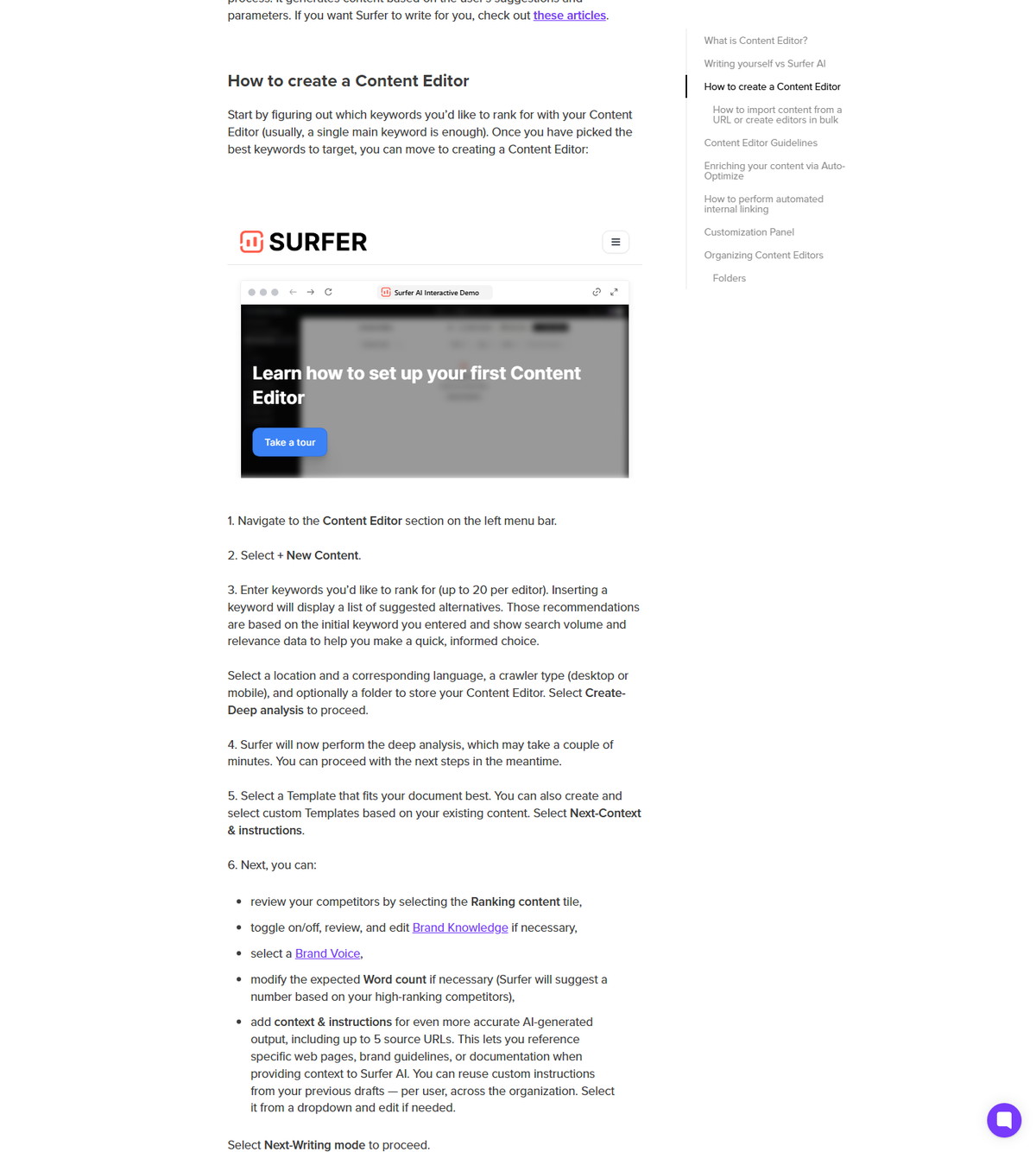
Creating an editor is a guided wizard: keywords, location, competitors, context, then writing mode. Surfer's overview walks through the flow, and a March 2026 update introduced a new AI-powered wizard that loads brand knowledge and templates earlier in the process.
Step 1: Add Your Target Keywords
Open the Content Editor section, select New Content, and enter the keywords you want to rank for. Surfer recommends starting with a single main keyword. The input shows suggested alternatives with search volume and relevance data, and you can add up to 20 keywords per editor.
Step 2: Set Location, Language, and Crawler
Choose the search location and matching language, then pick a desktop or mobile crawler. This determines which pages Surfer treats as your competitors. You can also assign the editor to a folder for team organization; folders group drafts by topic, client, or workflow stage, and deleting a folder does not delete the documents inside it.
Step 3: Review Competitors and the Customization Panel
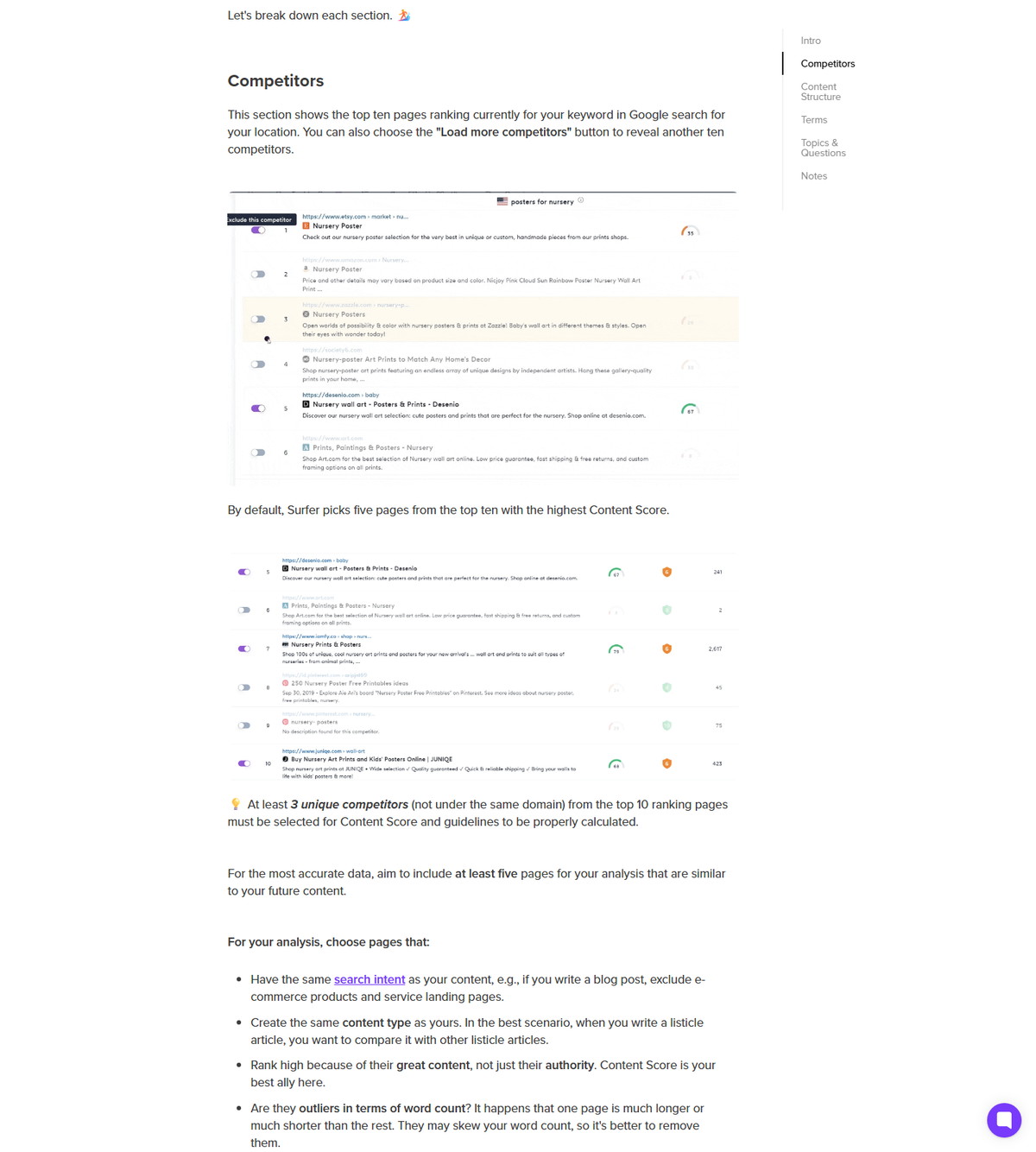
Check the ranking pages Surfer selected, then adjust the guidelines before writing. The customization panel, under the gear icon, controls four things: competitors, content structure, terms to use, and topics and questions. Surfer says at least 3 unique competitors from different domains must be selected for Content Score and guidelines to calculate properly, and it recommends pages that share your search intent and content type. The official product page adds the best-practice bar: choose competitors with matching intent and a Content Score of 68 or higher.
Step 4: Choose a Template, Context, and Instructions
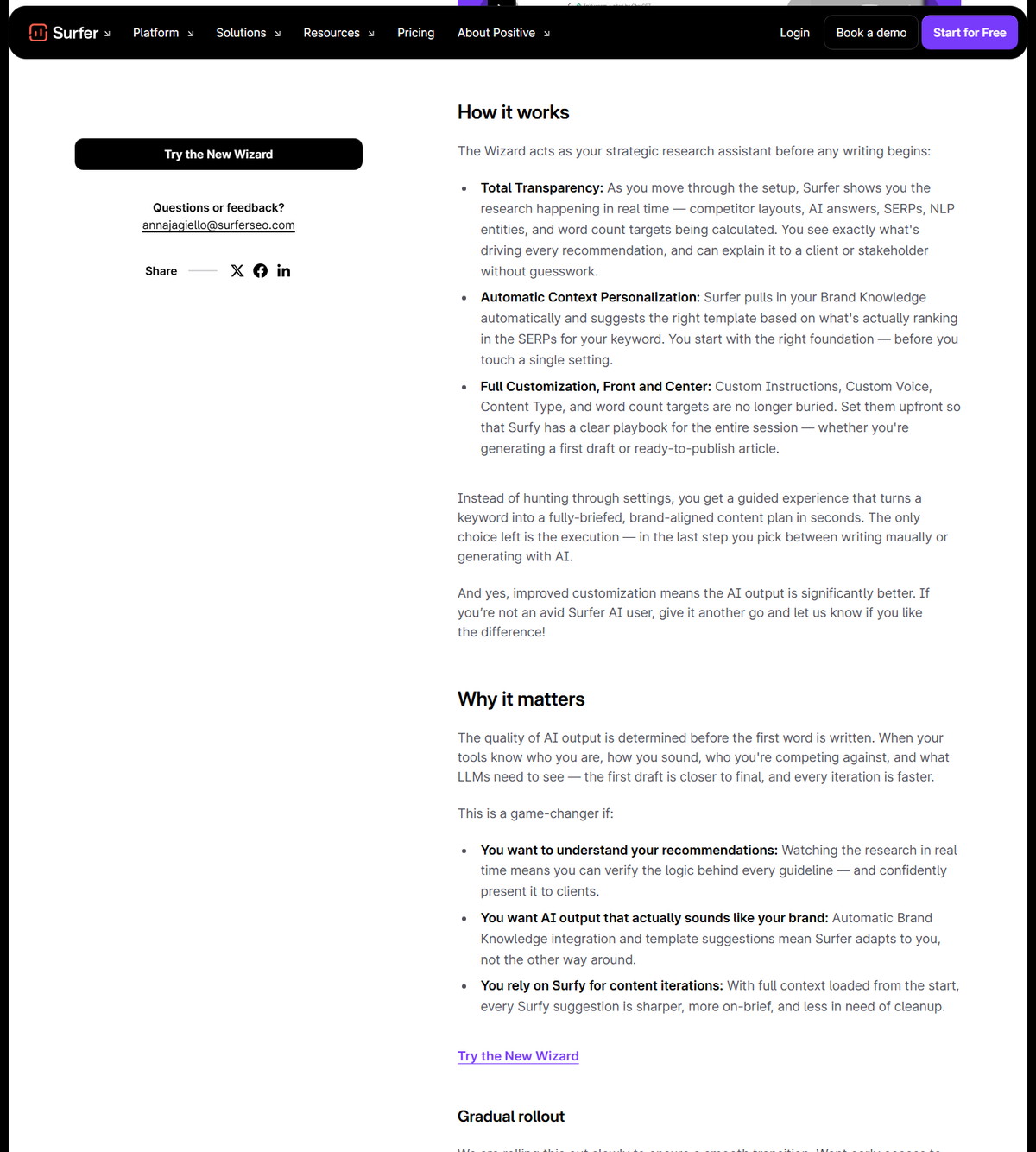
Pick a template, review Brand Knowledge and Brand Voice, set the expected word count, and add context and custom instructions. Surfer allows up to 5 source URLs for context, so you can reference brand guidelines or documentation. Custom instructions can be reused from previous drafts across the organization. The 2026 wizard update brings Brand Knowledge, template suggestions, and custom instructions into the first screen instead of burying them in settings.
Step 5: Pick Your Writing Mode
Choose Write it yourself for an empty editor with guidelines, or Generate content to have Surfer AI build the outline and article. In manual mode the editor opens immediately and guidelines populate in the background as the deep analysis completes. In AI mode you can review and edit the outline before generation starts.
How the Guidelines Panel Structures Your Workflow
The right-hand guidelines panel is a step-by-step workflow that runs from research to publishing. Surfer organizes it into five expandable steps, and the top of the panel shows your three live scores.
| Workflow step | What it does |
|---|---|
| Research and Create Outline | Explore competitors, questions, and notes; generate or refine the outline |
| Write and Optimize | Cover recommended entities and facts, answer the user's question early, and track all three scores |
| Internal Links | Connect Google Search Console and insert relevant internal links |
| Pre-Publish Review | Readability scoring, plagiarism checking, and AI readability analysis |
| Publish or Export | Add meta tags, copy or download the article, create social posts, or export to WordPress |
You can copy the finished article as text, HTML, or Markdown, or download it as an .html or .md file. The same panel is where you reach Auto-Optimize and the plagiarism checker.
Research and Create Outline
This step gathers competitor insights, questions, and notes, then generates or refines your article outline. The outline builder works from real competitor data and produces headings and questions you can edit before writing.
Write and Optimize
This step is where you draft while covering recommended entities and facts, answering the user's question early, and tracking all three scores. The guidelines surface terms, structure targets, and topics as you write.
Internal Links
This step connects Google Search Console and inserts relevant internal links into your draft. Semantic linking also requires a Content Audit project for the target domain, and you can review, edit, or discard every suggestion before saving.
Pre-Publish Review
This step runs readability scoring, plagiarism checking, and AI readability analysis before you publish. The plagiarism checker needs at least 50% of the suggested word count and allows one run every 10 minutes.
Publish or Export
This step finalizes meta tags and hands the article off, with copy, download, social post, and WordPress export options. You can copy the article as text, HTML, or Markdown, or download it as an .html or .md file.
Content Score, SEO Score, and AI Search Score Explained
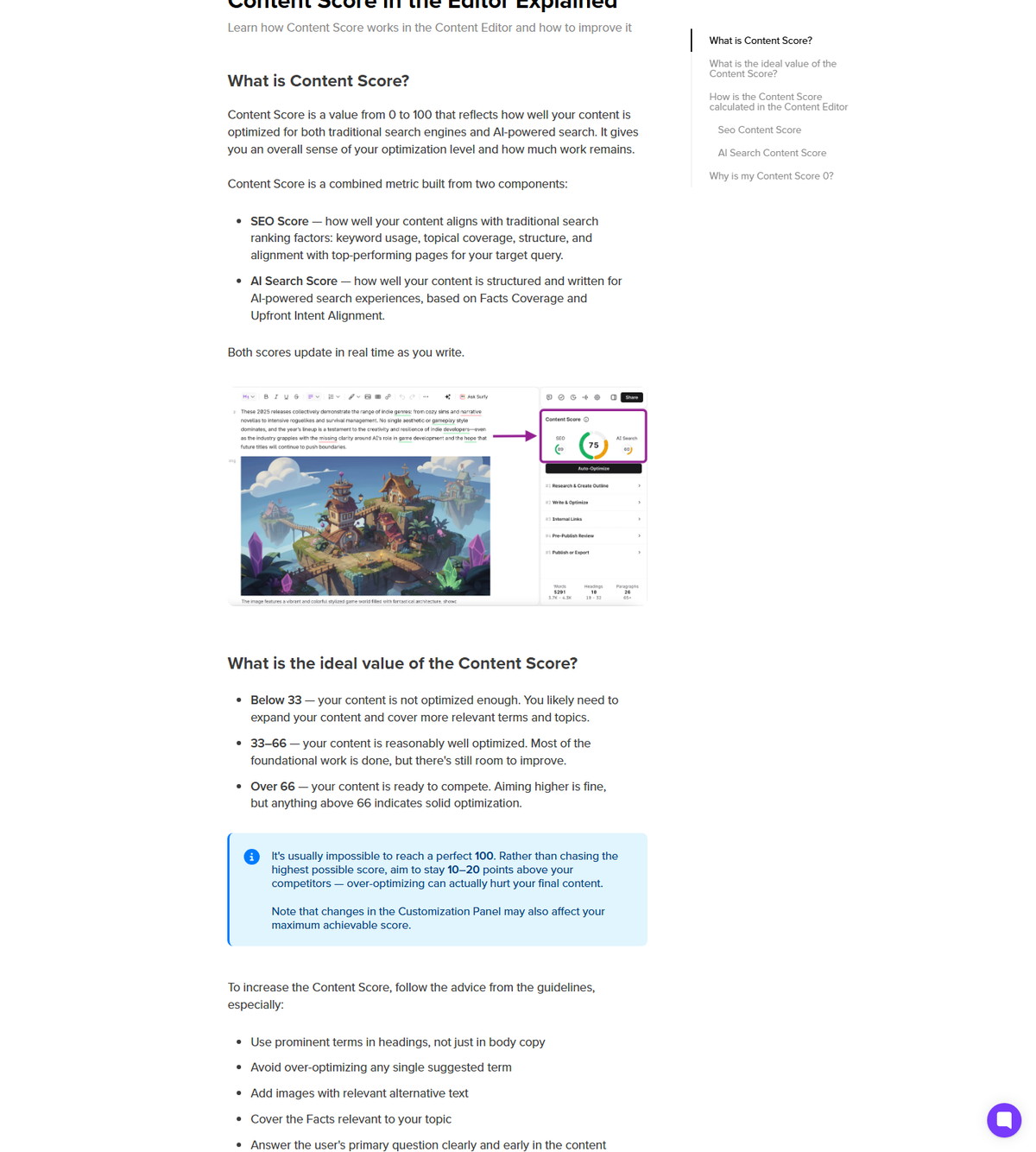
Content Score is a value from 0 to 100 that reflects how optimized your content is for both traditional search engines and AI-powered search. Surfer's help article explains that it combines two components: SEO Score, which covers keyword usage, topical coverage, structure, and alignment with top-performing pages, and AI Search Score, which is based on Facts Coverage and Upfront Intent Alignment. Both update in real time as you write.
What Content Score Measures
The score measures alignment with the current top-performing pages and with the structure AI answers expect, not a Google ranking prediction. Surfer says the SEO component prioritizes meaningful terms that appear consistently across top-performing pages, and that how terms are used in context matters more than how often they appear. The AI Search component rewards covering the facts, entities, and concepts common in AI-generated answers, plus answering the user's primary question early and clearly.
| Content Score band | What Surfer documents | Recommended action |
|---|---|---|
| Below 33 | Content is not optimized enough | Expand content and cover more relevant terms and topics |
| 33 to 66 | Content is reasonably well optimized | Finish foundational work and improve remaining gaps |
| Above 66 | Content is ready to compete | Aim 10 to 20 points above competitors; avoid over-optimizing |
How to Improve the Content Score
Follow the guidelines, especially around headings, term balance, images, facts, and early answers. Surfer's documented advice includes:
- Use prominent terms in headings, not just in body copy.
- Avoid over-optimizing any single suggested term.
- Add images with relevant alternative text; a suggested keyword in the alt text also counts toward the score.
- Cover the Facts relevant to your topic.
- Answer the user's primary question clearly and early.
Surfer documents the readiness bands as below 33 (not optimized enough), 33 to 66 (reasonably optimized), and above 66 (ready to compete). It adds that a perfect 100 is usually impossible, and that aiming 10 to 20 points above your competitors is the practical target, because over-optimizing can hurt the final content.
Why Your Content Score Can Be 0
A zero score usually comes from competitor selection, crawl limits, or editor age. Surfer lists three documented causes:
- Fewer than 3 different domains among your selected competitors. Three pages from the same domain do not count as three domains, which can happen with branded keywords.
- SERPs dominated by pages Surfer cannot crawl, most commonly PDF files.
- Editors created before July 2020, because Content Score was introduced that month; creating a new editor for the same keyword resolves this.
How to Use Auto-Optimize and Facts
Auto-Optimize is a one-click pass that adds relevant NLP terms and sections while preserving your message. Surfer describes it as analyzing the search intent of your target keyword (informational, commercial, navigational, or transactional), then proposing enrichment suggestions in real time. You review each suggestion, compare it with the original, and save or discard it.
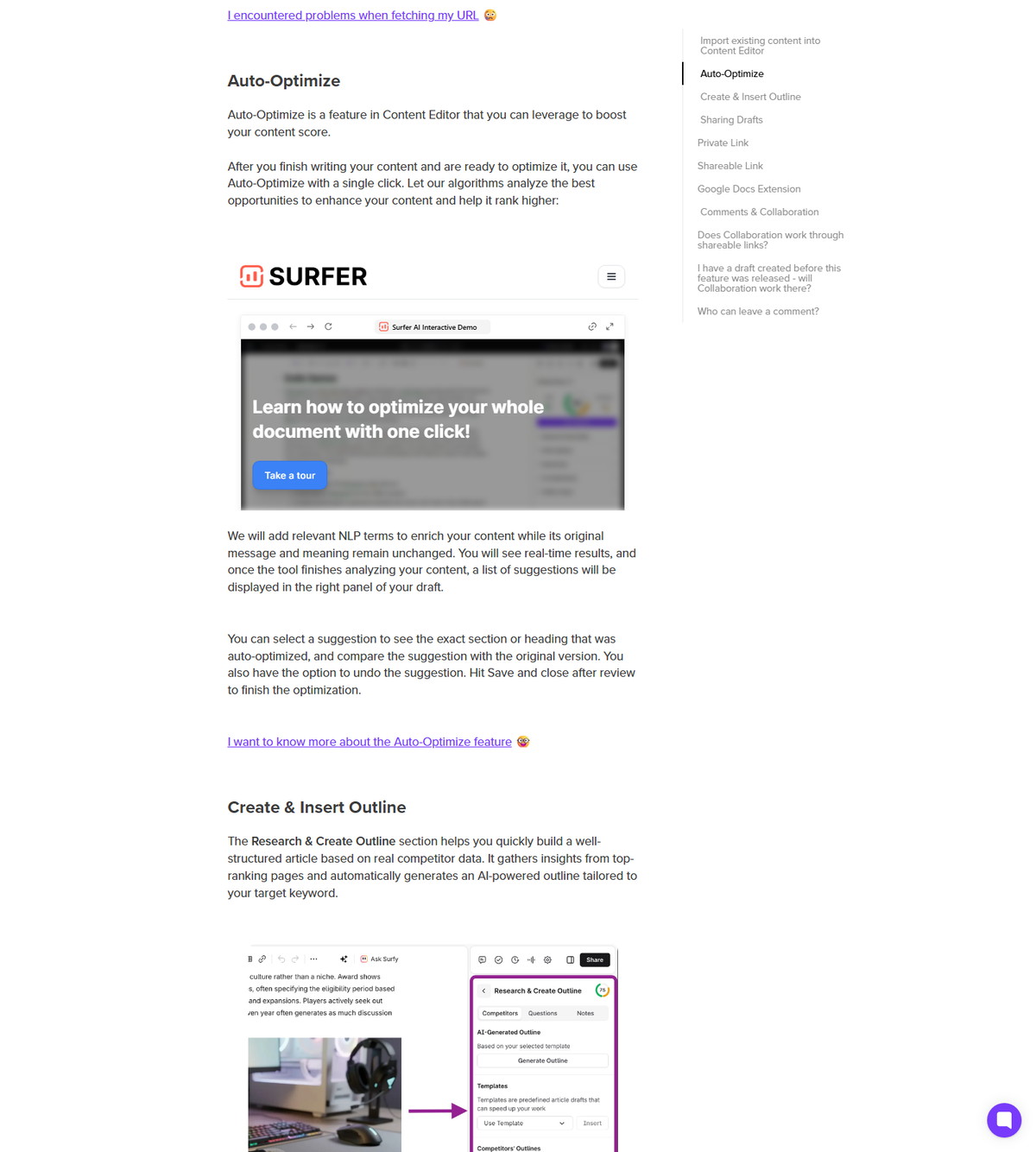
Usage rules Surfer documents:
- Available in all subscription plans except Discovery, under the fair usage policy.
- Usage is deducted only if at least one optimization suggestion is generated, even if you decline or close it afterward.
- It works in any language and matches the editor's language.
- Running it once after the article is near final gives the best results.
Facts is a related tool inside the AI Search section. It evaluates the topics your content covers, uses large language models to suggest improvements, and shows the sources behind each fact. Facts is included in all plans, works with the languages Surfer lists for it, and is not available on shareable links. Surfer documents that facts are pulled from up to the top 20 SERP results plus AI models such as ChatGPT, Perplexity, and Google AI Overview.
How to Optimize Existing Content with Import from URL
You can optimize an already-published page by importing it from its URL into a new Content Editor. Surfer's flow runs a deep analysis, generates guidelines, and populates the editor with the page's content, then scores it. You can also paste content from external writing tools or write directly.
Three boundaries matter:
- Import from URL is available only when creating the editor. It does not synchronize later edits to the live page, and it does not apply changes you make in a CMS.
- Editors created through Import from URL or bulk creation skip the newer wizard enhancements such as custom instructions and templates.
- If the crawler cannot reach the page (copy protection, timeouts, or HTTP errors such as 403 or 404), the query is canceled and the subscription limit is not affected. If the page responds but redirects to a different page or a challenge screen, the query completes and usage is deducted.
Collaboration, Sharing, and Team Workflows
Shareable links let external writers open and edit a draft without their own Surfer account. Surfer documents that a shareable link can be used an unlimited number of times, and that people with the link can review and edit the work directly in the tool. Comments and version history support team review.
Limits you should know:
- Facts is available only in-app, not on shareable links.
- Plagiarism Checker runs on the draft's shareable link in the web app, but not on drafts created outside Surfer such as Google Docs.
- Version History is available to the owner and organization members with access to the main drafts, keeps backups for up to 30 days, and is not available through shareable links or the Google Docs extension.
- Customization Panel configurations are excluded from version restores.
For agencies outsourcing writing, the documented flow is: create the editor, generate the shareable link, and let the writer work without account access. Review happens through comments and version history before you export.
Google Docs and WordPress Integrations
The Google Docs extension and the WordPress plugin extend the same guidelines into other writing and publishing surfaces, and neither replaces the Content Editor itself.
The Google Docs extension guide documents a one-way bridge: guidelines transfer into a Google Document, but article text does not sync both ways, so content must be copied manually. Collaborators need the extension installed to see guidelines, but they do not need a Surfer account to open the document. Surfer warns not to confuse this extension with Keyword Surfer.
The WordPress plugin works in two directions: export from Content Editor to a WordPress post or page (existing or new draft), and import from WordPress into a new Content Editor. It is free to download but fully usable only with an active Surfer subscription. Surfer documents support for Gutenberg, Classic Editor, and Elementor, with PHP 7.4 or newer required, and notes that WordFence or GoDaddy and Cloudflare hosting may need configuration exceptions.
Content Editor vs Other Surfer Products
Content Editor is one product in a suite, and the common confusion is calling every Surfer tool an editor. The boundaries below come from Surfer's official documentation.
| Product | Primary job | How it differs from Content Editor |
|---|---|---|
| Content Editor | Write and optimize a draft with real-time guidelines and scores | The workspace itself |
| Surfer AI | Automatically generate outline and article from guidelines | Content Editor writes manually; Surfer AI writes for you |
| Keyword Surfer | Free keyword and SERP research in Google and ChatGPT | Browser extension, not a document editor |
| Google Docs extension | Show Content Editor guidelines inside Google Docs | Guidelines transfer one way; no content sync |
| WordPress plugin | Connect Content Editor with WordPress posts and pages | Publishing bridge, not a scoring workspace |
| Content Audit | Monitor existing pages and recommend updates | Tracks published pages; feeds optimization work |
| Topical Map | Plan content clusters and topical coverage | Planning layer; editors execute the plan |
The practical rule for teams: create and score in Content Editor, generate in Surfer AI when you want a draft written for you, research in Keyword Surfer, and publish through the WordPress plugin or export flow.
Usage Limits and Fair Use Boundaries
Content Editor usage is metered, and several features sit behind plan gates or fair use rules. Surfer documents these boundaries without publishing one universal quota table:
- Every successfully created Content Editor counts as one usage against your subscription limit.
- Auto-Optimize is excluded from the Discovery plan and falls under the fair usage policy; usage is charged only when at least one suggestion is generated.
- Automated internal linking is included in Pro, Peace of Mind, and Enterprise plans, requires a Google Search Console connection, and semantic linking additionally needs a Content Audit project.
- Surfy, the AI assistant for editing and rephrasing, uses its own dedicated tokens separate from other AI features.
- AI image generation allows up to 3 images per Content Editor and 5 per AI article, and generation is tied to token usage.
- Facts is included in all plans but supports a defined language list.
- Plagiarism checks require at least 50% of the suggested word count, with 10 minutes between runs.
Because exact quota values are plan-specific and can change, verify your current allowance in Surfer's usage settings (profile icon, then Settings, then Usage) before planning a large batch.
Troubleshooting Content Editor Issues
Most Content Editor problems fall into five documented groups: imports, scores, the Google Docs bridge, the WordPress plugin, and recovery. Surfer's help center covers each with concrete fixes.
Import from URL Fails
Check whether the page returned no content, an HTTP error, or a redirect. If your server timed out, enabled copy protection, or returned a 403, 404, or 500, the query is canceled automatically and your limit is not affected. If the crawler was redirected or hit a challenge page such as a Cloudflare timeout, the query completes and usage is deducted. The documented workaround is manual copy and paste, plus fixing the server settings that blocked the crawler.
Content Score Stays at 0
Review your competitor domains, the SERP composition, and the editor's age. Select pages from at least 3 different domains, avoid SERPs dominated by uncrawlable pages such as PDFs, and recreate editors created before July 2020.
Google Docs Extension Problems
Confirm the writer has the extension installed and the document is connected to a Content Editor. Guidelines appear only for users with the extension, and the document must stay linked to the editor. The integration is one way, so missing text usually means it was never synced. To re-enable Surfer shareable links for that draft, disconnect the editor from the Google Document through the Share menu.
WordPress Plugin Errors
Start with the official troubleshooting guide, which maps error codes to fixes. A 401 means authentication failed: update and reconnect the plugin, and check custom permalink structures and conflicting security plugins. A 403 usually means the page is password protected or REST API is blocked. A 404 means the plugin could not reach the endpoint: refresh permalinks, clear caches, and check for plugin or theme conflicts. WordFence, GoDaddy, and Cloudflare are named as common blockers, with the documented fix of whitelisting the SurferSEO WP Plugin user agent.
Deleted Content Editor or Missing Backup
Contact Surfer support with the query link or keyword. Surfer states that backups exist for all Content Editors and that support can restore deleted queries. Version History restores older versions within the 30-day backup window for drafts that have had activity.
FAQ
Is Surfer Content Editor the same as Surfer AI?
No. Content Editor is the manual writing and optimization workspace, while Surfer AI is the separate generation workflow. Content Editor provides guidelines and real-time scores while you keep creative control. Surfer AI uses those guidelines to create an outline and article for you. Both live in the same product, but the writing mode you choose at creation decides which one you use.
Do I need a Surfer subscription to use the Content Editor?
Yes. An active Surfer subscription is required to create and score Content Editors. Surfer documents that every successfully created Content Editor counts as a single usage against your limit depending on your subscription, and features such as Auto-Optimize and automated internal linking are tied to specific plans and fair use rules.
How many keywords can I target in one Content Editor?
Up to 20 keywords per editor, though Surfer suggests a single main keyword is usually enough. The keyword input displays suggested alternatives with search volume and relevance data as you type, which helps you pick the target before the deep analysis runs.
What does the Content Score measure?
Content Score is a value from 0 to 100 that reflects how well your content is optimized for both traditional search engines and AI-powered search. It combines an SEO Score and an AI Search Score, and both update in real time as you write. Surfer documents bands below 33, 33 to 66, and above 66 for optimization readiness.
Can the Content Editor optimize existing articles?
Yes. You can import an existing page from a URL at creation time, paste content in, or write directly. The Import from URL flow runs a deep analysis, generates guidelines, and populates the editor with the page content, and it is available only when creating the editor.
Do collaborators need a Surfer account to open a shared Content Editor?
No. Collaborators with a shareable link can review and edit the draft directly in the tool without a Surfer account. The link can be used an unlimited number of times. Some features such as Facts and Plagiarism Checker are only available in-app or through the web draft, not through Google Docs or all shareable-link surfaces.
Is the Google Docs extension the same as the Content Editor?
No. The Google Docs extension brings Content Editor guidelines into a Google Document, but it is not the editor itself. The integration is not bidirectional: only guidelines transfer, and you copy article text manually. Surfer warns not to confuse it with Keyword Surfer, a separate research extension.