To use Rytr, choose the language, tone, and use case that match your task, provide specific context, generate up to three variants, then edit and verify the best parts before exporting. The tool is best treated as a drafting assistant rather than an autonomous publisher. Your input quality, source material, and review process determine whether the result is useful.
| At a glance | Details |
|---|---|
| Best for | Copywriters, marketers, freelancers, and entrepreneurs producing short-form copy or structured first drafts |
| Basic workflow | Choose settings, add context, generate variants, edit, verify, and export |
| Free allowance | 10,000 generated characters per month |
| Paid plans | Unlimited at $9 monthly and Premium at $29 monthly; lower monthly equivalents are shown with annual billing |
| Key controls | Use case, language, tone or My Voice, variants, and creativity |
| Browser support | Rytr offers a Chrome extension for writing on supported websites |
Rytr provides 40+ use cases on its current homepage, 20+ preset tones, an inline editor, a Chrome extension, and paid-plan plagiarism checks. This guide explains how those parts fit into a controlled content workflow. For the product-level buying analysis, see our contextual Rytr review. If you are ready to evaluate the current interface and plan limits, try Rytr.
What You Need Before You Start
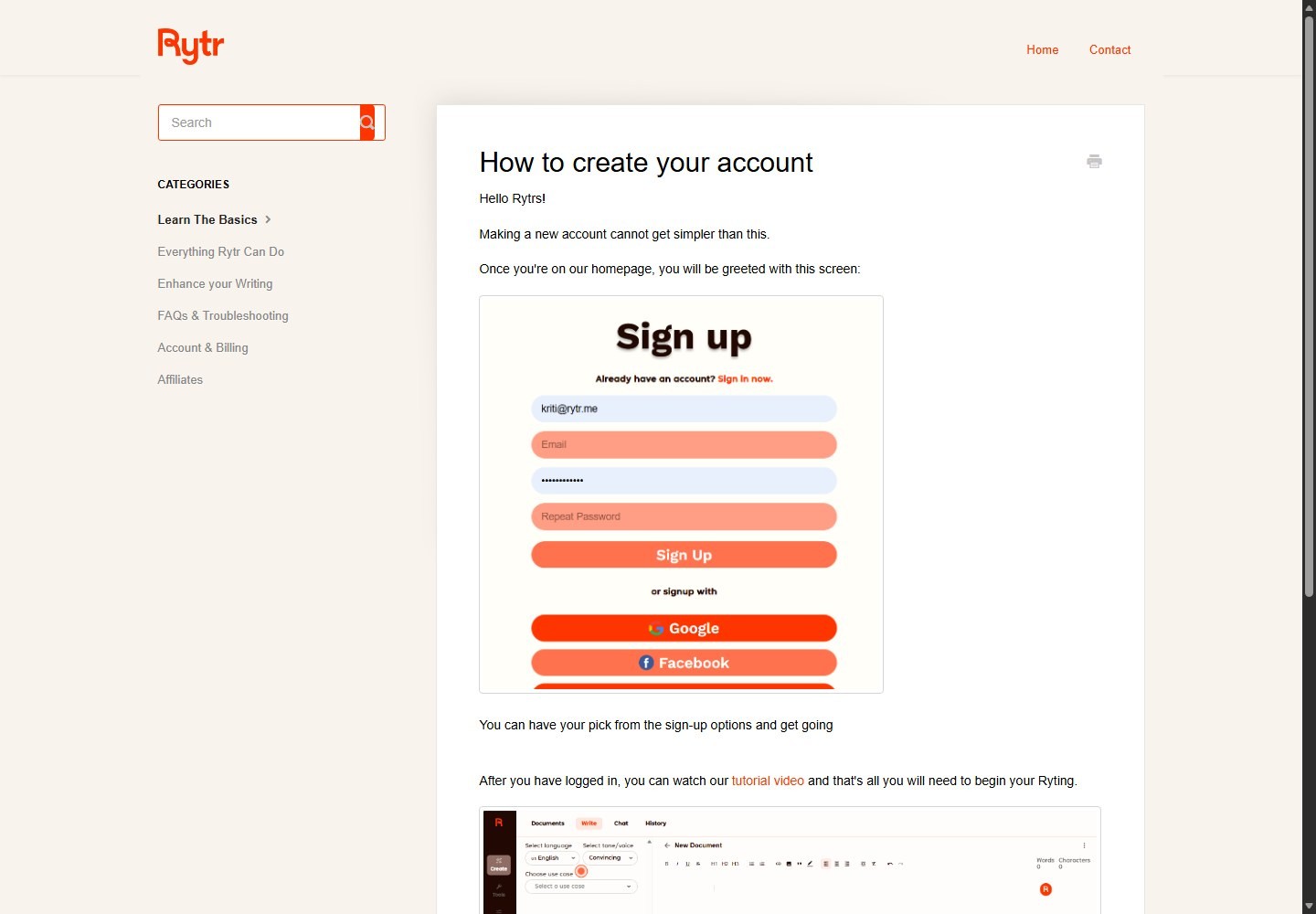
You can begin with a browser, an email account, and a clear writing task. Rytr advertises a Free plan with no credit card required and a 10,000-character monthly generation allowance. The current public pricing page lists Free at $0, Unlimited at $9 per month, and Premium at $29 per month when billed monthly. It also displays annual equivalents of $7.50 and $24.16 per month for Unlimited and Premium.
Prepare these inputs before opening a generator:
- A defined deliverable: Decide whether you need an email, product description, ad, social caption, outline, paragraph, or another format.
- Audience context: Note the reader's role, problem, knowledge level, and desired action.
- Source facts: Gather approved prices, specifications, quotes, dates, policies, and links in one place.
- Voice reference: If brand consistency matters, prepare a clean sample that represents the style you want Rytr to mirror.
- Acceptance criteria: Set a word or character range, required points, banned phrases, and a fact-check checklist.
- Human reviewer: Assign responsibility for accuracy, originality, brand fit, and compliance before publication.
There is an official-source conflict worth preserving. Rytr's pricing page says Free and Unlimited users have one language while Premium has 35+ languages. Its homepage says Premium supports 40+ languages. A help article says Rytr supports 30+ languages and that Free and Unlimited users can change their selected language once per month. Because these public pages do not agree, confirm the language available in the current plan selector before paying for a multilingual workflow.
Editorial guidance: Start on Free when you are validating a small, repeatable use case. Compare current Rytr coupon and pricing guide only after estimating your monthly generation volume, plagiarism-check needs, language needs, and number of voice profiles.
How To Use Rytr Step by Step
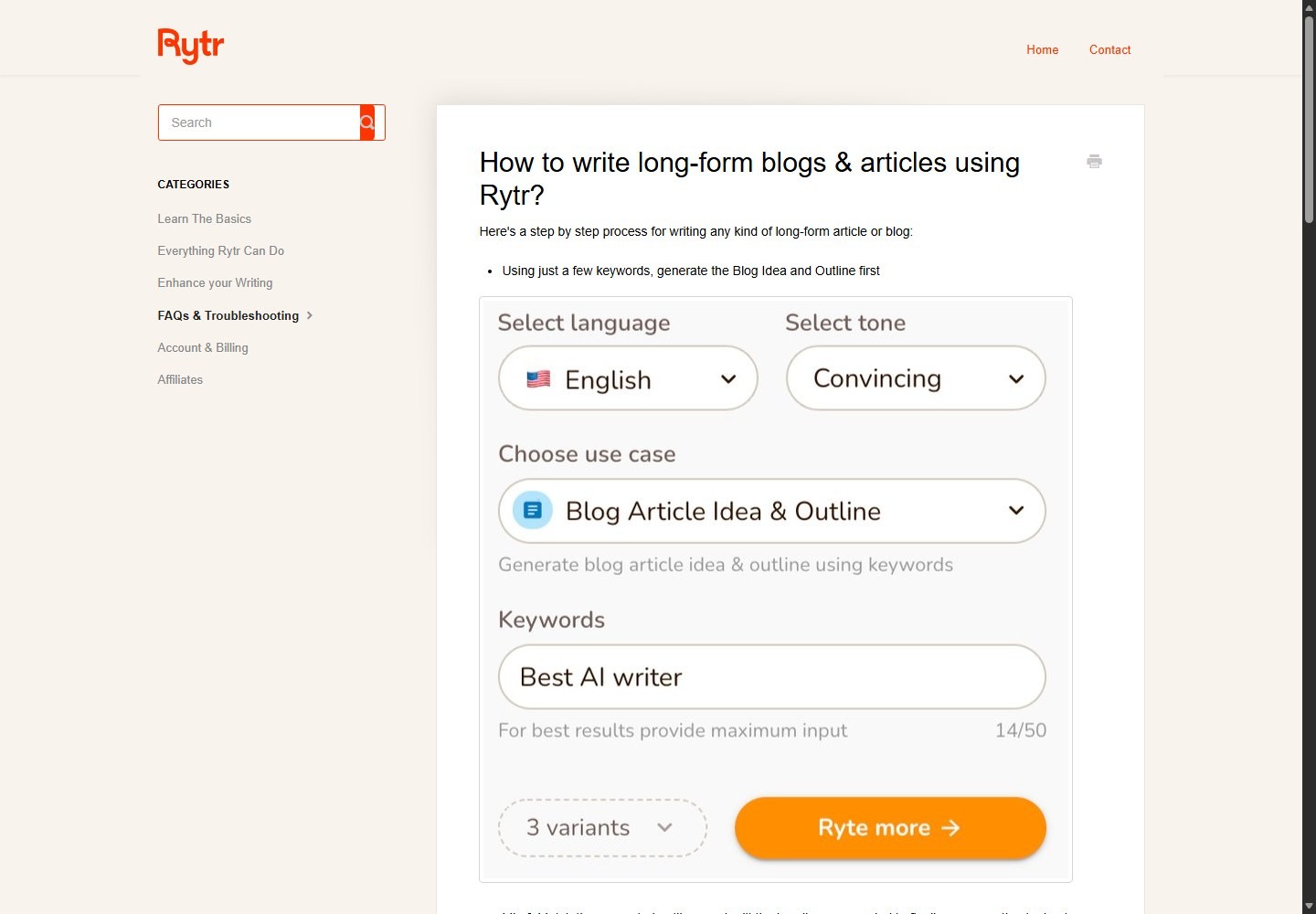
Rytr's official use-case pages present a recurring sequence: select a language, select a tone, choose a use case, add input, and generate. The following workflow adds the editorial controls needed for business publishing.
Define one output and its business purpose
Write a one-sentence brief before generating anything. For example: “Create three benefit-led subject lines for a welcome email aimed at first-time ecommerce buyers, with a helpful tone and no discount claim.” This forces you to decide what the copy must achieve and prevents a broad prompt from producing unfocused text.
Select the language
Choose the output language from the language control. Rytr's help center says the language selector appears on the left side of the interface. Use the language your audience will read, not simply the language of your source notes.
For localization, specify US English and its currency, spelling, date, and measurement conventions. Language availability differs across Rytr's public pages, so treat the live plan selector as the decision point.
Choose a preset tone or My Voice
Rytr says it offers 20+ preset tones, including examples such as convincing, awestruck, and inspirational. Choose the tone that suits both the channel and the reader. A convincing tone may fit an offer, while a helpful or formal direction may be safer for support or policy content.
My Voice is Rytr's tone-matching feature. Its official product page says Rytr analyzes a writing sample, mirrors the tone, and can use guidelines about a personal or professional voice. It also promotes separate tones for different clients. Current pricing describes one Tone Match on Unlimited and multiple Tone Match on Premium, while the homepage says one personalized tone on Unlimited and five on Premium. Older help and product wording is broader, so check the current account limit rather than assuming “multiple” means a specific number.
Editorial guidance: Use a sample that is genuinely representative, edited, and free of confidential information. A voice profile should help with stylistic consistency, not override a client brief or legal requirement. Keep separate profiles for materially different brands.
Select the closest use case
Choose the narrowest use case that matches the deliverable. Rytr's homepage advertises 40+ use cases, including text completion, Continue Ryting, Expand Content, grammar improvement, paragraph generation, rephrasing, shortening, and Magic Command.
Use a dedicated template when its fields match your task. Use Magic Command when the request is custom or needs constraints the template does not expose. Rytr's official Magic Command page says you can provide a command, sentence, or keyword, then ask the tool to generate according to the instruction.
A practical selection guide:
| Goal | Starting use case | Why it fits |
|---|---|---|
| Brainstorm an article | Blog Idea & Outline | Produces an initial structure that you can rearrange |
| Draft one section | Blog Section Writing or Paragraph Content | Keeps generation scoped to a heading or topic |
| Create campaign options | Email, ad, caption, or CTA use case | Matches a short-form output pattern |
| Continue an existing draft | Continue Ryting | Extends text from the selected context |
| Tighten a paragraph | Shorten or Improve | Revises selected text rather than starting over |
| Handle an unusual request | Magic Command | Accepts a custom instruction |
Add a specific input
Complete the input fields with concrete context. Include the subject, audience, desired outcome, supporting facts, format, and constraints. If the use case asks for keywords, use them as topic signals rather than stuffing every phrase into one field.
For a blog section, a stronger input is “Explain three ways a two-person marketing team can reduce review time using an editorial checklist. US English, 140 to 180 words, practical tone. Mention source checking and approval ownership. Do not claim guaranteed results.” A weak input is “write about marketing productivity.”
Do not paste passwords, customer records, unpublished financial data, health information, or other material you are not authorized to process. Review Rytr's current terms and privacy policy before using sensitive business content.
Set variants and creativity
Rytr's help center says you can generate a maximum of three variants at a time. It recommends more than one for creative tasks such as blog ideas, taglines, video ideas, and ad copy. Variants are useful because they let you compare approaches instead of treating the first result as final.
The creativity control has six levels from no creativity to maximum creativity, according to Rytr's help center. The same article warns that maximum creativity may require additional factual correction. Use lower creativity for fact-bound copy and higher settings for ideation, naming, or angle exploration.
Editorial guidance: Generate two or three variants for high-leverage short copy. For long content, generate one scoped section at a time to reduce waste and make review easier. Select useful claims and phrases deliberately rather than combining entire variants without checking continuity.
Generate, compare, and keep the strongest material
Run the generation and compare outputs against your acceptance criteria. Reject any variant that misses the audience, required fact, format, or tone. Do not reward fluent wording if it introduces an unsupported claim.
Edit in the document workspace
Rytr describes its editor as an inline, document-style workspace. Its help center explains that selecting text exposes a ribbon with Expand, Shorten, and Rephrase/Improve commands. Expand adds words, Shorten reduces length while preserving broadly the same meaning, and Improve rewords the selection.
For long-form content, Rytr's official help workflow recommends generating a Blog Idea and Outline, mixing and editing headings, then selecting each topic and using the Paragraph command. It says Continue Ryting can operate on a selected 100 to 1,000 characters when a paragraph is not enough.
Edit in focused passes for structure, facts, voice, conversion, and copy quality. Match every claim to an approved source before polishing it.
Editorial guidance: Use Expand only when the reader needs more context. Use Shorten when a sentence has one idea hidden inside extra wording. Use Improve as a candidate rewrite, not automatic approval. For broader tool comparisons before standardizing a workflow, review Rytr alternatives.
How To Write Better Rytr Prompts
A reliable prompt gives Rytr enough context to make useful choices while reserving factual judgment for the editor. Use this compact framework:
Task + audience + outcome + facts + format + voice + constraints.
Example:
> Write three 35-to-50-word product descriptions for a reusable stainless-steel water bottle. Audience: US commuters who want fewer disposable bottles. Approved facts: 24-ounce capacity, leak-resistant screw lid, hand-wash only. Voice: clear and practical. Include one benefit-led opening and a low-pressure CTA. Do not mention insulation, sustainability certifications, or discounts.
The approved-facts block is important. It tells the model what it may safely use and explicitly blocks plausible but unsupported details. If you need a different angle, change the outcome or voice instead of asking for “better copy.”
For editing, identify what must remain unchanged:
> Shorten this paragraph to 70 words. Preserve the price, eligibility condition, and deadline exactly. Remove repetition. Use US English. Do not add urgency or guarantees.
Editorial guidance: When the result is wrong, diagnose the missing instruction. Add the missing audience, fact, format, or exclusion. Repeatedly clicking generate with the same vague input spends credits without improving control.
Practical Rytr Workflow Examples
Turn a product brief into ecommerce copy
Start with the Product Description use case or Magic Command. Supply only approved specifications, the buyer problem, channel, maximum length, and prohibited claims. Generate three variants because short commercial copy benefits from angle diversity. Select the best opening, then check every feature and qualifier against the product record.
Next, create a shorter marketplace version and an email version as separate tasks. Do not ask one output to satisfy every channel. The return on effort comes from reusing verified source facts while changing format, not from publishing the same copy everywhere.
Build a blog draft section by section
Use Blog Idea & Outline to generate an initial structure, then edit the headings manually. Rytr's help article explicitly recommends mixing and matching outline ideas before generating paragraphs. Attach target keywords to relevant sections, but keep each section focused on the reader's question.
For a quota-focused planning model, see how many blog words Rytr can support. Generate one paragraph or section at a time. Use Continue Ryting when a selected passage needs a logical extension. After drafting, add original research, expert quotes, examples, and citations outside the generation step. Rytr can accelerate a first draft, but it does not establish that a claim is true or current.
Create an email campaign with controlled variants
Our dedicated Rytr Email Generator guide covers the channel-specific QA. Define one campaign objective, one audience segment, and one offer. Generate three subject lines, then three body openings. Keep the approved offer terms unchanged. Evaluate subject lines for clarity and fit rather than predicted performance unless you have your own test data.
Build the final email from selected components, then run your normal approval and testing process before scheduling.
Rewrite a client paragraph without losing the claim
Paste the approved paragraph into a document, select it, and use Shorten or Improve. Compare the rewrite line by line with the original. Restore any qualifier, attribution, date, or exception that disappeared. Tone Match can support consistency, but the client brief remains the authority.
How To Use My Voice and Tone Controls Safely
Preset tones provide quick stylistic direction. My Voice is more useful when you repeatedly write for the same person or brand. Rytr says the feature can analyze a sample, mirror tone, and apply brand guidelines.
Build a voice sample from finalized content, not raw drafts. Include enough variation to represent introductions, explanations, transitions, and calls to action. Exclude quotes from other people because they can distort the profile. Add explicit guidelines for preferred terminology, sentence length, formality, and phrases to avoid.
Test the profile on a low-risk task against your style guide. If it misses brand judgment, strengthen the guidelines and keep high-stakes copy under manual control.
The public plan descriptions conflict on Tone Match quantities. Pricing uses “1 Tone Match” for Unlimited and “Multiple Tone Match” for Premium. The homepage describes one personalized voice on Unlimited and five on Premium. Treat the live billing screen as the operational source at purchase time, and preserve screenshots or invoices for internal procurement records.
How To Check Plagiarism and Originality
Rytr's official plagiarism page says the checker is powered by Copyscape. Current pricing lists no plagiarism checks on Free, 50 per month on Unlimited, and 100 per month on Premium.
Run the check after structural editing so you do not spend a check on text you will delete. Review each reported match in context. Rewrite overly similar passages, add attribution when ideas or wording require it, and keep citations for factual material. Then perform a final editorial review.
A clean result is not a guarantee of originality, factual accuracy, copyright clearance, or academic integrity. It also cannot determine whether you have permission to use a claim, quotation, or licensed passage.
Editorial guidance: Treat the plagiarism checker as one control in a larger process. Maintain source notes, quote accurately, distinguish common phrases from distinctive wording, and apply the publication's citation policy. For regulated or academic work, follow the governing organization's rules rather than relying on an AI tool's status message.
How To Export and Publish Rytr Content
Rytr's public workflow supports document export in Word and HTML formats. Choose Word when another editor needs a familiar review file. Choose HTML when moving formatted text into a compatible web workflow. Export is a transfer step, not a publication approval.
After export, inspect headings, lists, emphasis, links, and special characters. Word and content-management systems can interpret formatting differently. Use tracked changes for Word review. Preview HTML in the destination and remove unwanted inline formatting. Do not assume metadata, schema, image rights, canonical URLs, or accessibility fields are complete.
Editorial guidance: Keep the source-of-truth draft and the published version under version control. Record who verified claims and when. This reduces rework when a price, policy, or feature changes.
How To Use the Rytr Browser Extension
Rytr offers a Chrome extension. Its help center says the extension supports Magic Command and editing operations across websites. The documented setup is to install it from the Chrome Web Store, pin it, select a preferred language and tone, and enable or disable it by website.
The help article instructs users to select 30 to 300 characters, click the Rytr icon to open the ribbon, choose an operation, and allow the extension to replace the selected text. The current Chrome Web Store listing describes Gmail, Facebook, and WordPress examples, but it also labels the extension beta and warns that some sites or apps may have compatibility issues.
Use the extension for contained tasks such as shortening a paragraph or rephrasing a reply. Copy important text before replacement. Disable it where company policy prohibits third-party writing tools.
Editorial guidance: Test the extension on a disposable draft before using it in a production CMS or customer conversation. Review permissions, browser profile rules, and data-handling policy with your organization. Compatibility and toolbar behavior can vary by site.
Rytr Limitations To Plan Around
Rytr can accelerate ideation and drafting, but its official help center warns that maximum creativity may require factual correction. That warning should shape the whole workflow. Generated prose can be confident, incomplete, repetitive, or unsupported.
Other practical constraints include:
- The Free plan has a 10,000-character monthly generation limit.
- Plagiarism checks are limited by plan and are absent from Free.
- Language counts conflict across the homepage, pricing page, use-case pages, and help center.
- Tone Match quantities are described differently across current official pages.
- The Chrome extension is marked beta in its official store listing.
- Three variants can improve choice but also increase character usage and review time.
- A plagiarism result does not verify facts, permissions, citations, or overall originality.
- Word or HTML export does not complete web publishing QA.
Rytr is strongest when the task has a narrow format, approved facts, and a reviewer. It is less suitable as the sole system for research-heavy, high-risk, or citation-sensitive content. If these constraints conflict with your process, compare the documented options in our Rytr vs Scalenut comparison.
Troubleshooting Common Rytr Problems
| Problem | Likely cause | Controlled response |
|---|---|---|
| Output is generic | Input lacks audience, facts, or constraints | Add a specific reader, outcome, approved-facts block, format, and exclusions |
| Facts change between variants | Creativity is too high or facts are not locked | Lower creativity, restate exact facts, and verify every claim |
| Tone feels wrong | Preset or voice sample does not fit the channel | Choose another tone, refine My Voice guidelines, or edit manually |
| The draft repeats itself | Scope is too broad or sections overlap | Generate one section at a time and remove duplicate headings |
| Continue Ryting loses direction | Selected context is weak or too broad | Select the most relevant preceding passage and state the next point explicitly |
| Extension icon does not appear | Text length, site compatibility, or extension state | Select 30 to 300 characters, confirm the site is enabled, then test another field |
| Plagiarism checks are unavailable | Current plan has no checks or the allowance is exhausted | Confirm plan limits and use the organization's approved review process |
| Required language is missing | Plan access or public documentation differs | Check the live selector and billing screen before changing plans |
| Export formatting shifts | Destination interprets Word or HTML differently | Preview, clean styles, and recheck links, headings, and lists |
If login or billing access fails, use Rytr's official help center and support channel rather than repeatedly creating accounts. Capture the exact error, browser, extension version, affected website, and reproduction steps. Do not send sensitive draft content unless support specifically requires it and your policy allows disclosure.
A Controlled Verification Checklist Before Publishing
Use this final gate for every Rytr-assisted asset:
- Confirm the output matches the requested audience, channel, and action.
- Compare all names, prices, dates, specifications, and policies with current primary sources.
- Remove invented statistics, quotations, testimonials, and guarantees.
- Preserve material qualifiers such as “up to,” eligibility rules, and geographic limits.
- Check that My Voice or the selected tone fits the current brand, not another client.
- Review each plagiarism match and apply the required attribution policy.
- Read the piece for repetition, awkward transitions, and unsupported certainty.
- Test every link and CTA destination.
- Inspect the Word or HTML export in its destination.
- Assign final approval to a named human owner and record the review date.
This checklist turns Rytr into a controlled production step. It reduces blank-page time while keeping accountability for claims, brand decisions, and publication with your team.
If that model fits your operation, start with Rytr's current free plan and validate one repeatable task before upgrading.
FAQ
Is Rytr free to use?
Yes. Rytr's current pricing page lists a Free plan at $0 with 10,000 generated characters per month. It lists no plagiarism checks and no Tone Match on Free. Plan details can change, so verify the live pricing page before building a production quota around it.
How do beginners use Rytr?
Choose one deliverable, select the output language and tone, pick the closest use case, add specific context, and generate. Compare up to three variants, edit the strongest material, verify every claim, check originality where available, and inspect the export before publishing.
How many variants can Rytr generate?
Rytr's help center says the maximum is three variants at a time. More than one can be useful for creative tasks such as taglines, ideas, and ads. Each additional variant also creates more material to review.
What is Rytr My Voice?
My Voice is Rytr's custom tone feature. Rytr says it analyzes a writing sample, mirrors the style, and can use brand guidelines. Public pages differ on the number of profiles included in paid plans, so confirm the current billing screen.
Does Rytr check plagiarism?
Paid plans currently include plagiarism checks, with 50 per month on Unlimited and 100 per month on Premium according to Rytr's pricing page. Rytr says the feature uses a Copyscape add-on. A check can find matching sources, but it does not guarantee originality, factual accuracy, or permission to publish.
Can Rytr write a full blog post?
Rytr can support a long-form workflow. Its help center recommends generating an idea and outline, editing the headings, creating paragraphs section by section, and using Continue Ryting when more text is needed. A human still needs to add evidence, verify claims, edit, and approve the final post.
Can I export Rytr content?
Yes. Rytr's public workflow supports Word and HTML export. Review the exported file in its destination because formatting, links, and styles may change during transfer.
Does Rytr work in Chrome?
Yes. Rytr has an official Chrome extension that supports Magic Command and editing operations on websites. The official store listing labels it beta and notes possible compatibility issues. Rytr's help center says selected text should be between 30 and 300 characters for the extension workflow.
Which Rytr plan should I choose?
Choose based on generation volume, plagiarism-check allowance, language access, input limits, and Tone Match needs. Free is suitable for a small validation. Unlimited and Premium serve larger or multi-brand workflows, but the official pages conflict on some language and voice quantities. Confirm the live plan selector before purchase.