The Clearscope Google Docs integration brings a live content grade, recommended terms, word-count guidance, and Draft context into the document where writers already work. It is useful for SEO specialists, content managers, agencies, and enterprise teams that want consistent optimization without forcing every contributor to draft in a separate platform.
| At-a-glance | Details |
|---|---|
| Integration type | Google Docs add-on linked to a shared Clearscope Draft |
| Install source | Direct Google Workspace Marketplace link supplied by Clearscope |
| Main requirements | Shared Draft, Google account, OAuth access, desktop browser, and Google Doc editing permission |
| Best for | Collaborative briefing, drafting, optimization, and editorial QA |
| Main limitation | The add-on does not replace fact-checking, CMS formatting, or post-publication monitoring |
| Clearscope access | Start a Clearscope trial |
The basic workflow is straightforward: install the add-on with the correct Google account, open it from the Extensions menu, paste a shared Clearscope Draft URL, and select Link draft. This guide covers the prerequisites, exact setup sequence, scoring workflow, team permissions, practical limitations, and fixes for common Google Workspace errors.
Quick Answer: How Does Clearscope Work in Google Docs?
Clearscope works in Google Docs through an add-on that connects a Google document to a shared Clearscope Draft. After the connection, a sidebar brings Clearscope's optimization guidance into the document so the writer can edit normally while monitoring topical coverage and other content metrics.
You need a desktop browser, a Google account that can install and authorize the add-on, editing permission for the target document, and a Clearscope Draft with sharing enabled. The add-on is reached through Clearscope's direct Google Workspace Marketplace listing; Clearscope notes that users should follow the direct link rather than expect to discover it through a normal public Marketplace search.
If you are deciding whether the wider platform fits your team—not only this integration—the full Clearscope review explains pricing, content monitoring, AI visibility features, and buyer fit.
What Does the Clearscope Google Docs Integration Do?
The integration places Clearscope Draft recommendations beside the editable Google Doc, reducing the need to copy text between two editors. It is designed to keep the writer's familiar collaboration workflow while giving SEO and content managers a shared optimization reference.
Once a Draft is linked, the writer can use the Docs sidebar to check the content against the selected topic. The current Google Workspace Marketplace listing names Terms, Content Grade, and Word Count as sidebar metrics. Clearscope's broader editor documentation also describes readability guidance, but teams should verify which metrics appear in the current Docs add-on. Because the Draft supplies the analysis, the team should create and review that Draft before asking a writer to optimize against it.
The integration helps with:
- Writing or revising content in a familiar collaborative editor.
- Viewing topic and term recommendations without a separate browser tab.
- Monitoring Content Grade as the document changes.
- Giving writers, editors, and SEO specialists one shared document.
- Working with freelancers through a shared Draft workflow without granting broad Clearscope account permissions.
- Standardizing an editorial quality gate before content enters the CMS.
It does not publish the article, configure Rank Math, set a canonical URL, add schema, verify claims, create original expertise, or guarantee rankings and AI citations. Google Docs is still the drafting environment; the CMS and post-publication workflow remain separate.
What Do You Need Before Installing the Add-on?
Check account, browser, permission, and Workspace policy requirements before troubleshooting the Draft URL. Clearscope's official setup guide lists the following prerequisites.
| Requirement | What to confirm | Why it matters |
|---|---|---|
| Clearscope Draft | The Draft exists and its share link is enabled | The add-on links to a shared Draft URL |
| Google account | You are signed in to the intended Google account | Installing under the wrong account can prevent access |
| Google Drive | The target document is available in that account | The add-on runs inside Google Docs |
| Document permission | You have editing, not only viewing or commenting, access | Clearscope requires editing permission for the target document |
| Google OAuth | Third-party authorization is permitted | The add-on must be authorized through Google |
| Desktop browser | Installation and use happen on desktop | Clearscope identifies desktop as a requirement |
| Workspace Marketplace policy | Marketplace apps are enabled by the administrator | Managed accounts can block the installation |
| Docs and Drive add-ons | Add-ons are enabled in the Admin console | A separate organization policy can disable them |
If you are a freelancer using a shared Clearscope Draft without a Clearscope user account, sign in to the Google account that has edit access to the document. The Draft share link provides access to that Draft, not general access to the client's Clearscope organization.
How to Install Clearscope in Google Docs
Open the direct Clearscope Marketplace listing
Use the installation link in Clearscope's support documentation instead of searching the Marketplace. Open the Clearscope Google Workspace Marketplace listing in a desktop browser and select Install.
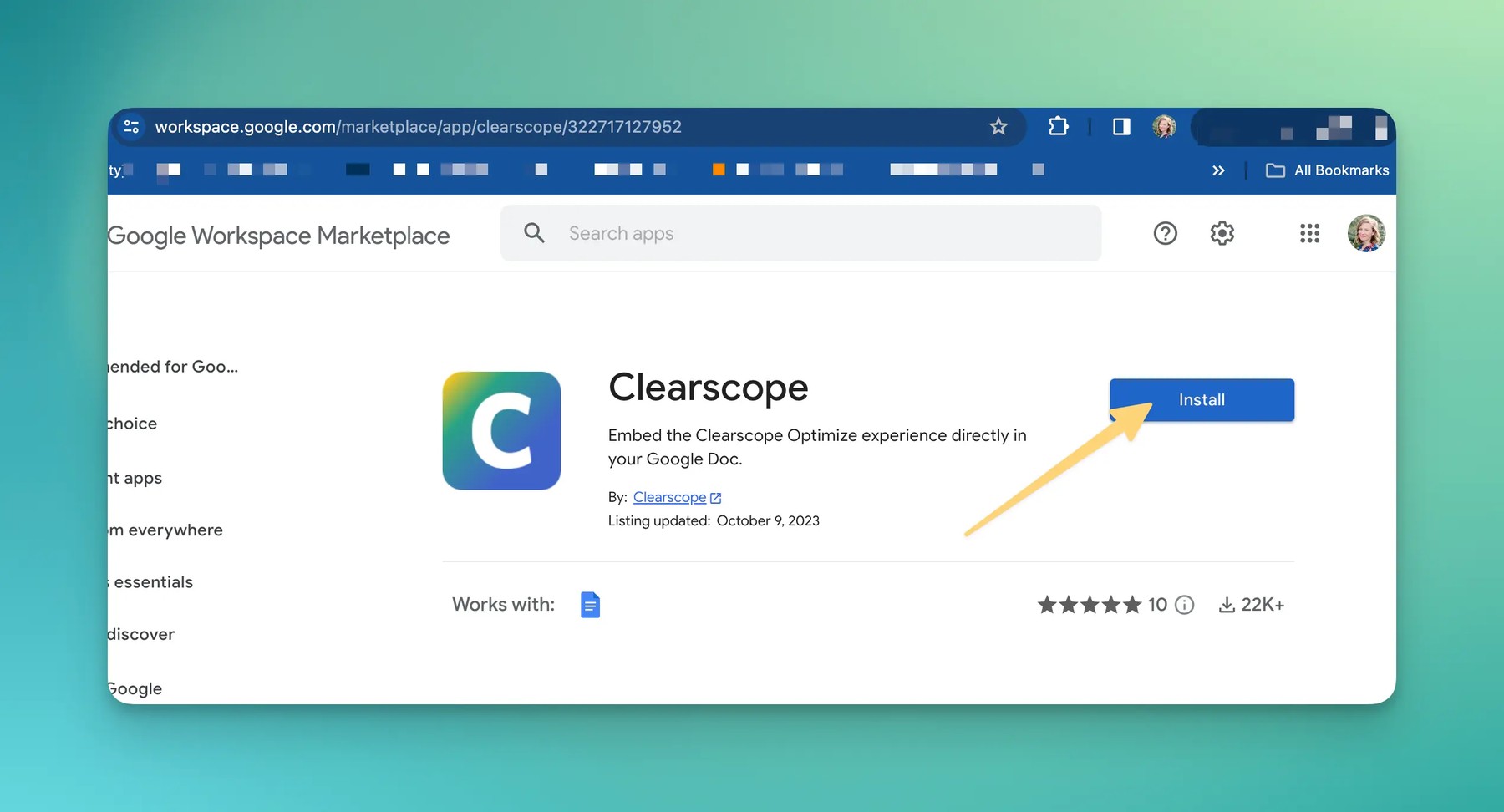
If the page is unavailable under a managed Google Workspace account, do not repeatedly change browsers or Clearscope passwords. Ask the Workspace administrator whether Marketplace applications and third-party OAuth access are allowed for your organizational unit.
Choose the correct Google account
Install the add-on while signed in to the Google account associated with your Clearscope workflow or the shared document. Multiple active Google sessions can make the account picker easy to misread.
For a clean installation:
- Confirm the email address that owns or can edit the Google Doc.
- Confirm whether that same address is the Clearscope user or invited collaborator.
- Select that account during installation and authorization.
- Review the requested permissions before approving them.
- If the wrong account was selected, uninstall the add-on from that account and reinstall it under the correct one.
Clearscope specifically recommends uninstalling and reinstalling when the add-on was attached to the wrong Gmail account.
The current Marketplace listing says the add-on can manage documents where it is installed, display third-party content in prompts and sidebars, connect to an external service, and view the user's primary email plus basic profile information. Review those requested permissions with the Workspace administrator before a broad agency or enterprise rollout.
Open the add-on from the Extensions menu
Open a new or existing Google document, then go to Extensions > Clearscope > Start. You must have editing permission for that document.
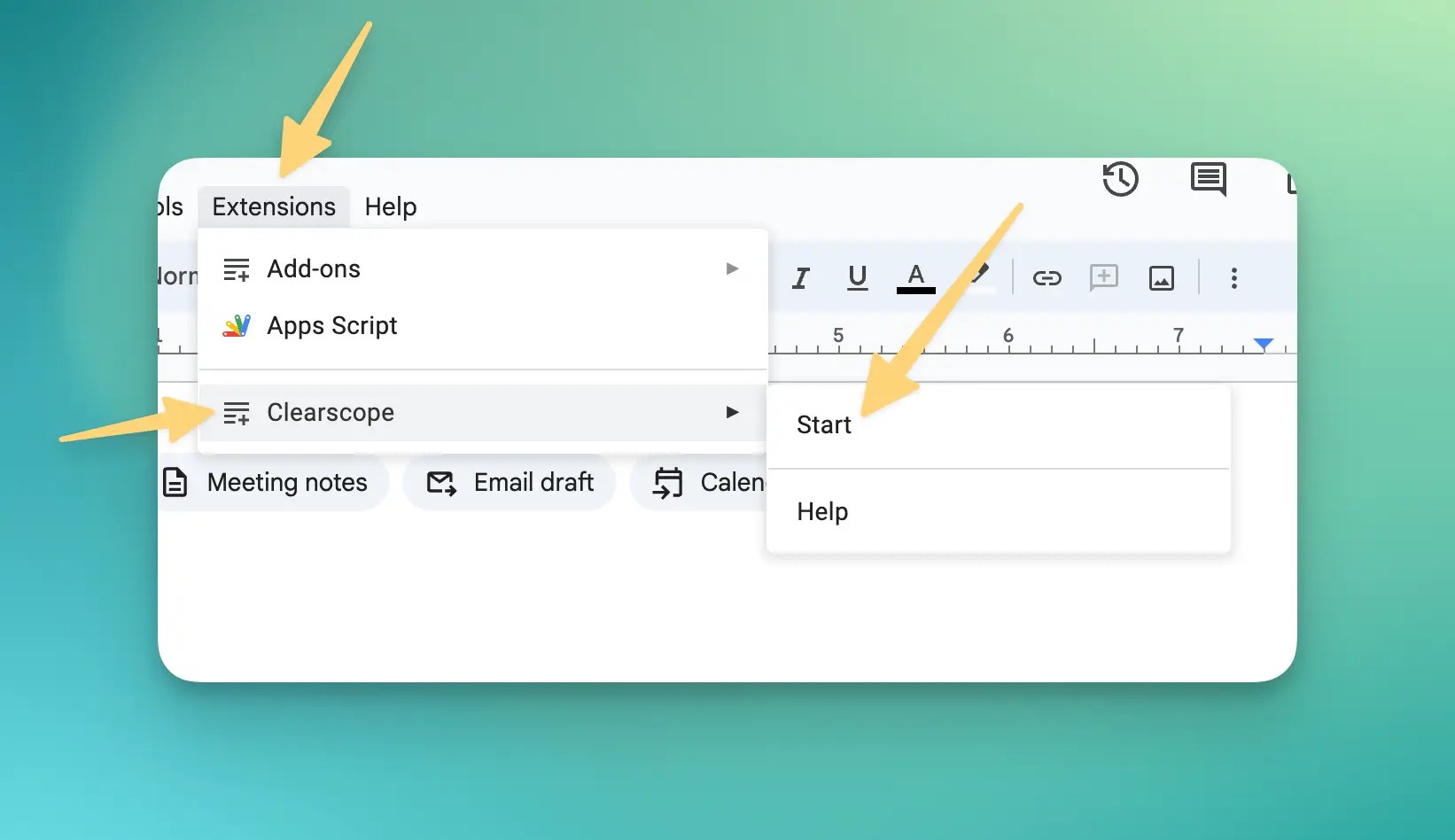
The Clearscope panel should open on the right side of the document. If Clearscope does not appear in the Extensions menu, refresh the document, verify the active Google account, and check whether the installation actually completed for that account.
How to Link a Clearscope Draft to a Google Doc
Enable sharing for the Clearscope Draft
Open the target Draft in Clearscope and enable its share link before copying the URL. The Google Docs add-on requires the Draft to be shared.
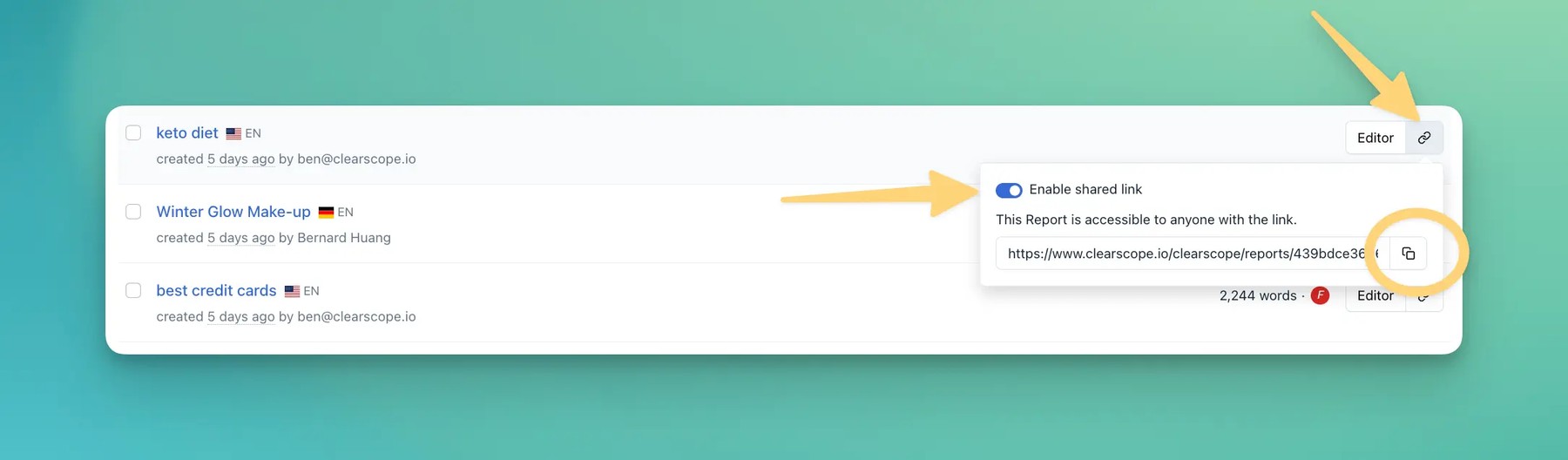
Clearscope compares this access model to a shared Google Doc: anyone with the link can access that Draft, but the link does not grant permission to manage other Drafts or organization settings. Treat it as a sensitive editorial URL. Share it only with the assigned contributor and disable sharing when the workflow no longer requires guest access.
Administrators can also configure new Drafts to be shared automatically in organization settings. Automatic sharing reduces setup friction, but teams handling confidential briefs may prefer an explicit per-Draft decision.
Paste the Draft URL into the sidebar
Copy the shared Clearscope Draft URL, paste it into the add-on's right-hand panel, and select Link draft. Use the Draft URL itself—not the Google Doc URL, a published page URL, or the Clearscope dashboard URL.
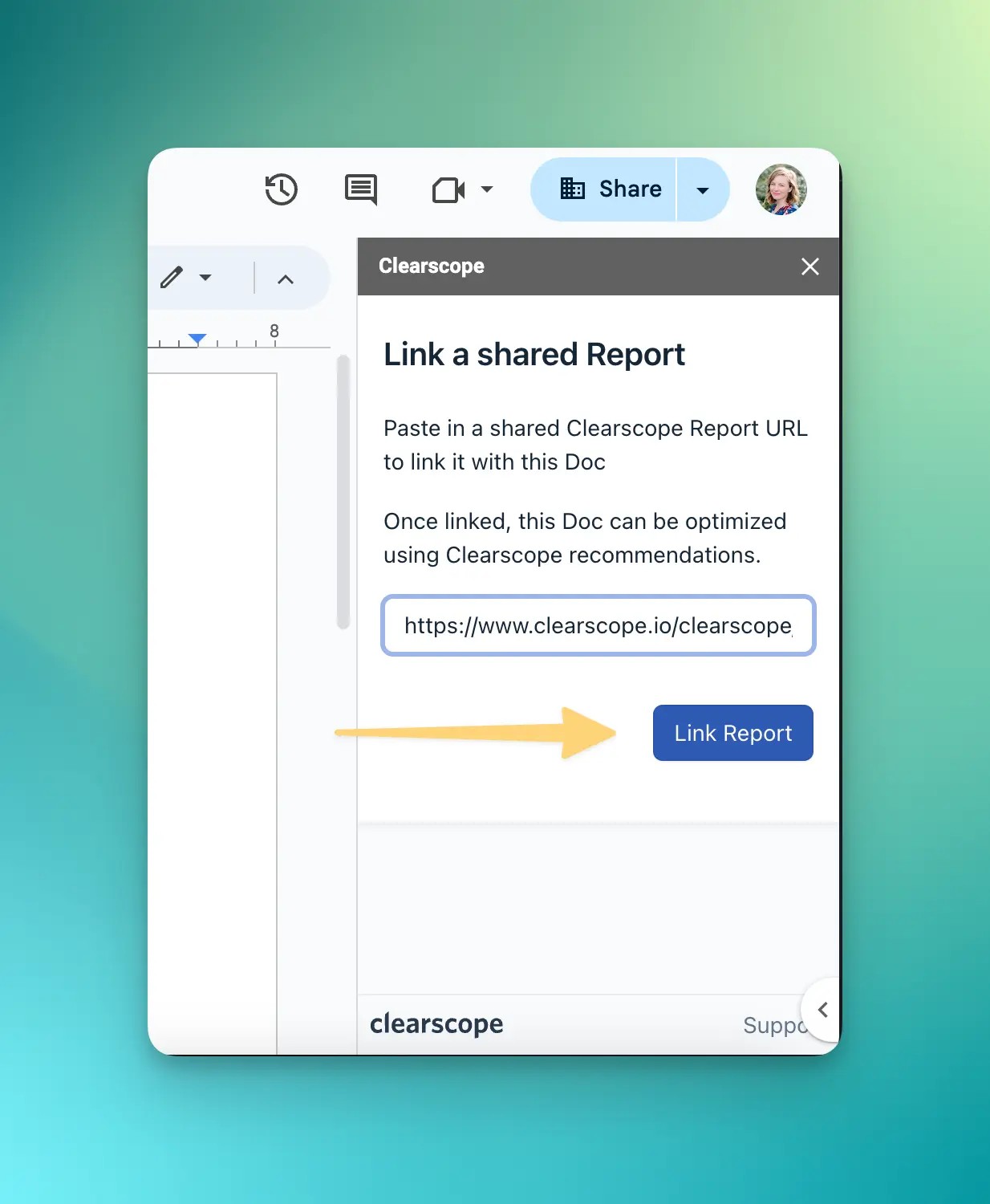
Some official screenshots still use the older labels Report and Link Report, while current support copy generally uses Draft and Link draft. The documented connection sequence is the same, so follow the label displayed in your current sidebar.
After linking, confirm that the sidebar shows the expected target topic and recommendations. If the wrong Draft was linked, disconnect it before editing so the team does not optimize the article against an unrelated query.
Verify the live scoring connection
Make a small, reversible edit and confirm that the sidebar metrics respond. Add a relevant sentence or use one appropriate recommended term, then wait for the grade or term state to update.
This check distinguishes a working Draft connection from a panel that merely loaded. Do not use an artificial paragraph or repeat a term only to move the score; remove the test sentence if it does not improve the article.
How to Use Clearscope and Google Docs in a Real SEO Workflow
Create and validate the Draft before assigning it
The SEO owner should create the Clearscope Draft for the correct target query, locale, and language, then validate search intent and competitor selection. An accurate sidebar cannot rescue a Draft built around the wrong SERP.
Before handing the Google Doc to a writer, record:
- Primary query and intended US audience.
- Search intent and content type.
- Required entities, questions, and decision points.
- Approved source list and evidence standard.
- Desired angle or information gain.
- Internal links and conversion goal.
- Grade range used as a diagnostic target, not a ranking promise.
Mixed-intent search results deserve special attention. Exclude irrelevant page types where the Clearscope workflow permits it, or explain to the writer which competitor patterns should not shape the article.
Draft for the reader before chasing the grade
Use the sidebar to identify missing explanations, not to stuff every suggested phrase into the document. Clearscope defines Content Grade as a measure of relevance and comprehensiveness compared with the analyzed search landscape.
A practical sequence is:
- Write the direct answer and core structure from the approved brief.
- Review unused high-priority terms and ask what reader question each represents.
- Add the missing concept only when it improves the answer.
- Check heading clarity, word count, and readability.
- Remove repetition introduced solely to raise the score.
- Re-read the article without looking at the sidebar.
For a deeper treatment of grade ranges and editorial misuse, see how the Clearscope grading system works.
Collaborate in Google Docs without losing ownership
Use native Google Docs comments, suggestions, version history, and permissions for editorial collaboration while Clearscope supplies the optimization layer. These systems solve different problems.
A simple role model is:
| Role | Primary responsibility in the workflow |
|---|---|
| SEO specialist | Query, locale, SERP intent, Draft setup, and optimization brief |
| Writer or subject expert | Accurate, original, useful first draft |
| Content editor | Structure, clarity, brand voice, evidence, and completeness |
| SEO reviewer | Term gaps, grade interpretation, internal links, and metadata brief |
| Publisher | CMS blocks, media, taxonomy, schema, canonical, and final QA |
Avoid giving every collaborator permission to change Clearscope organization settings. A shared Draft and an editable Google Doc are often enough for an external writer.
Complete a CMS handoff checklist
Treat the optimized Google Doc as an approved source document, not as a fully implemented web page. Before publishing, check:
- One H1 and a logical H2/H3 hierarchy.
- Correct internal and external links.
- Affiliate link destination and sponsored attributes.
- Images stored in the CMS with alt text and dimensions.
- Title tag and meta description.
- Canonical URL, indexation settings, and schema.
- Category, author, status, and slug.
- Mobile rendering and table behavior.
- Factual review, citations, and legal requirements.
A good grade can coexist with broken links, unsupported claims, weak conversion copy, or malformed Gutenberg blocks. Keep editorial and implementation QA as separate gates.
How Does Content Grading Behave in Google Docs?
The Google Docs add-on brings real-time Clearscope scoring into the writer's editor, but the underlying Draft—not Google Docs—defines the topic analysis. The grade measures topical relevance and comprehensiveness against the pages Clearscope analyzed.
Clearscope's editor documentation describes grades from A++ to F and broader editor signals such as word count and readability. The current Docs Marketplace listing explicitly names Terms, Content Grade, and Word Count for the sidebar. Recommendations can recognize relevant concepts and term variations rather than requiring a mechanical exact-match checklist. Even so, the writer controls whether each suggestion belongs in the article.
Clearscope assigns recommended terms an importance indicator from 10 for a must-include concept to 1 for the least important. Its “typical uses” range is based on analyzed ranking pages and is guidance rather than a quota. Word-count guidance similarly compares the Draft with a typical competitor range; neither metric requires matching the upper limit.
Use the grade to answer diagnostic questions:
- Is a major subtopic absent?
- Does the document answer the questions implied by the SERP?
- Is the article substantially thinner than comparable pages for a valid reason?
- Did an edit accidentally remove an important entity or explanation?
- Does the readability level fit the audience?
Do not interpret the grade as probability of ranking. Google also evaluates page quality, links, site reputation, technical accessibility, freshness, originality, and satisfaction of intent. AI platforms control their own retrieval, citation, and answer-generation systems.
Can This Workflow Improve Google and AI Search Visibility?
The integration can improve the consistency of content optimization, but it cannot guarantee visibility in Google, ChatGPT, or Gemini. Its direct job is to help a team create a more relevant and comprehensive draft inside Google Docs.
Clearscope's broader platform now includes visibility and prompt-tracking capabilities for Google and AI chatbots. Those functions are not the same as the Google Docs sidebar. After publication, use the main platform and connected analytics or search data to monitor performance, identify decay, and decide whether the page needs an update.
For AI search, prioritize passages that clearly define entities, answer specific questions, provide verifiable evidence, and add information that is worth citing. A higher term score alone does not create source authority or guarantee an AI mention.
What Are the Limitations of the Clearscope Google Docs Add-on?
The add-on simplifies drafting and optimization, but it depends on Google Workspace policy, Draft sharing, and a separate publishing workflow.
| Limitation | Operational impact | Practical response |
|---|---|---|
| Desktop requirement | Mobile-first contributors cannot rely on the full workflow | Complete optimization from a supported desktop browser |
| Managed-account restrictions | Admin policies can block install or OAuth | Request approval before assigning work |
| Shared Draft dependency | Unshared or wrong URLs will not connect correctly | Confirm sharing and topic before editing |
| Link-based guest access | Forwarded links can expose a confidential brief | Limit distribution and disable sharing when finished |
| No CMS implementation | Metadata, schema, taxonomy, media, and blocks still need QA | Use a draft-first publishing checklist |
| Score can be overused | Writers may add repetitive or irrelevant text | Evaluate intent, accuracy, and information gain first |
| No outcome guarantee | Strong optimization does not ensure rankings or AI citations | Monitor published performance and iterate |
If add-on access, pricing, or workflow constraints outweigh the benefit, compare focused Clearscope alternatives rather than abandoning the editorial brief and QA process.
Clearscope Add-on vs Manual Copy-and-Paste Workflow
Use the add-on when contributors live in Google Docs and need frequent, live feedback; use a manual workflow when installations are blocked or optimization volume is low.
| Workflow | Best for | Main advantage | Main trade-off |
|---|---|---|---|
| Clearscope Google Docs add-on | Teams with recurring collaborative production | Live guidance beside the editable document | Requires installation, authorization, and shared Draft setup |
| Clearscope web editor | Users comfortable working inside Clearscope | Full native editor context without Docs authorization | Less aligned with a Docs-centered editorial process |
| Manual copy and paste | Occasional work or restricted Workspace accounts | No add-on policy dependency | More tool switching and greater version-control risk |
A blocked add-on does not require abandoning Clearscope. A writer can work in Google Docs, then an SEO editor can paste the draft into Clearscope for a final review. The workflow is less immediate but preserves the content-quality gate.
How to Fix Common Clearscope Google Docs Problems
| Problem | Likely cause | First action |
|---|---|---|
| Clearscope is missing from Extensions | Installed under another account or installation did not complete | Verify the active account, refresh Docs, and reinstall if necessary |
| Draft URL will not link | Draft is not Shared or the wrong URL was pasted | Enable Draft sharing and copy the Draft URL again |
Error 400: admin_policy_enforced | Workspace policy blocks third-party OAuth | Ask the Workspace administrator to allow the app |
| “This app is blocked” | OAuth or Marketplace access is restricted | Review third-party app access in Admin console |
| Marketplace apps are unavailable | Marketplace installation is disabled | Enable apps for the relevant organizational unit |
| Docs/Drive add-ons do not run | Add-ons are disabled separately | Enable Drive and Docs add-ons in Workspace settings |
| Sidebar opens for the wrong account | Multiple Google sessions or wrong installation account | Sign out of unrelated sessions or reinstall under the correct account |
| Metrics do not reflect edits | Wrong Draft, stale panel, or connection issue | Confirm the topic, refresh the panel, and relink the Draft |
| Add-on does not work on mobile | Unsupported workflow | Move to a desktop browser |
Clearscope does not appear in the Extensions menu
Confirm that the document and add-on are open under the same Google account. Refresh the document after installation. If Clearscope remains missing, uninstall it from the wrong account and reinstall it using the direct Marketplace link under the correct account.
The Draft URL is rejected
Return to Clearscope and verify that the Draft's share link is enabled. Copy the URL directly from that Draft. Do not paste a project dashboard, Google Doc, Content Inventory, or published-page URL.
Google shows admin_policy_enforced or “This app is blocked”
Escalate the exact error to the Google Workspace administrator. Clearscope identifies administrator configuration as a common cause. The admin may need to approve third-party app access, enable Marketplace applications, or enable Docs and Drive add-ons for the correct organizational unit.
Do not ask a writer to bypass company controls with a personal account unless the organization explicitly approves that workflow. It can create data-governance and ownership problems.
The sidebar opens but scoring does not update
Check that the correct Draft is linked, then make one small relevant edit and wait for the metric to refresh. If the panel remains stale, refresh Google Docs, restart the add-on, and relink the Draft. Preserve the document text before disconnecting anything.
If the issue continues, record the Google account, browser, Draft URL, exact error, and reproduction steps, then contact Clearscope support without including confidential credentials.
Best Practices for Agencies and Enterprise Teams
Turn the integration into a documented operating procedure instead of leaving each writer to configure it differently.
- Name one owner for Draft creation and SERP validation.
- Decide whether Draft sharing is enabled manually or automatically.
- Approve the add-on centrally before onboarding many writers.
- Use organization-owned Google accounts for client and brand documents.
- Give external contributors only the access required for the assigned document and Draft.
- Define an acceptable grade range without requiring A++ mechanically.
- Separate factual, editorial, SEO, legal, and CMS approval gates.
- Revoke document access and disable Draft sharing when assignments end.
- Monitor published pages in the main Clearscope workflow rather than treating optimization as finished at handoff.
For regulated, confidential, or enterprise content, involve security and legal teams before enabling link-shared Drafts or third-party OAuth. The correct configuration depends on the organization's data classification, retention, and vendor-review policies.
Is the Clearscope Google Docs Integration Worth Using?
The integration is worth using when Google Docs is already the team's editorial hub and writers need regular Clearscope feedback. It reduces copy-and-paste cycles, makes recommendations visible during drafting, and supports a cleaner handoff between SEO specialists, writers, and editors.
It adds less value for one-off articles, teams that prefer the native Clearscope editor, or organizations that cannot approve the add-on. In those cases, a manual final optimization pass can be simpler.
Test the workflow with one low-risk Draft and one representative writer. Measure setup time, revision cycles, editorial adoption, and whether the recommendations produce better explanations—not merely a higher letter grade. If that test fits your process, try Clearscope with your Google Docs workflow.
FAQ
Is there a Clearscope extension for Google Docs?
Yes. Clearscope provides a Google Docs add-on through a direct Google Workspace Marketplace listing. Clearscope says users should use its specific listing link because the add-on is not intended to be found through a normal public Marketplace search.
Do writers need a Clearscope account to use the Google Docs add-on?
Not always. A contributor can use a shared Clearscope Draft without a full Clearscope user account. The contributor still needs the correct Google account, editing permission for the Google Doc, and access to the shared Draft link.
Why must a Clearscope Draft be shared?
The add-on uses the shared Draft URL to load the topic analysis and recommendations into Google Docs. Sharing grants access to that Draft through the link; it does not grant permission to manage the rest of the Clearscope organization.
Does Clearscope work in Google Docs on mobile?
Clearscope's official setup guidance requires a desktop browser for the add-on workflow. Plan installation and optimization work on desktop rather than depending on the mobile Docs app.
What permissions are required in Google Docs?
The user must have editing permission for the target Google document. View-only or comment-only access is not sufficient for the supported add-on workflow.
What does Error 400: admin_policy_enforced mean?
It usually means a Google Workspace administrator has restricted third-party application access. The administrator must review OAuth, Marketplace, and Docs/Drive add-on policies for the user's organizational unit.
Does the add-on publish directly to WordPress?
No. The Google Docs integration provides Clearscope guidance inside the document; it is not a complete CMS publishing system. WordPress formatting, media, metadata, taxonomy, schema, and final status still require a separate handoff and QA process.
Does a high Clearscope grade guarantee Google rankings?
No. Content Grade measures relevance and comprehensiveness against the analyzed search landscape. Rankings also depend on intent satisfaction, originality, authority, links, technical health, competition, and many other factors.
Can Clearscope Google Docs help content appear in ChatGPT or Gemini?
It can help a team create clearer and more comprehensive content, but it cannot guarantee AI citations or mentions. Clearscope's broader platform tracks Google and AI visibility; that monitoring function is separate from the Docs add-on itself.
What should I do if the add-on still does not work?
Record the exact error, Google account, browser, Draft status, and reproduction steps, then contact Clearscope support. Do not send passwords, OAuth tokens, or other credentials in the support request.