The NeuronWriter WordPress integration connects the content optimizer to a WordPress site through the REST API. It can import an existing post for optimization or export a finished draft to WordPress, reducing repetitive copying while preserving the article structure. It does not replace editorial review, WordPress SEO settings, or a final quality check.
| At a glance | Details |
|---|---|
| Native integration access | GOLD plan and higher |
| WordPress requirement | REST API access and Application Passwords |
| Recommended WordPress role | Dedicated Author account or higher |
| Main actions | Import existing posts and export new content |
| Best workflow | Export as a draft, then complete WordPress QA |
| Main failure points | Permissions, blocked REST API, wrong protocol, security rules |
| NeuronWriter access | View NeuronWriter subscription options |
For SEO specialists, writers, agencies, and website owners, the practical question is not whether WordPress can receive the text. It is whether the connection is secure, repeatable, and compatible with the site's editor, theme, taxonomy, media, and SEO plugin. This guide explains the setup, publishing workflow, checks, and error fixes needed for a dependable connection.
Quick Answer: How Does the NeuronWriter WordPress Integration Work?
NeuronWriter connects to WordPress with a site URL, WordPress username, and revocable Application Password. According to NeuronWriter's current documentation, the native integration is available on GOLD and higher plans. After saving the connection in Project Settings, you can use the WordPress option in the editor to import or export content.
Use the integration to reduce routine transfer work, but send new content to WordPress as a draft first. Check the Gutenberg structure, media, links, categories, author, SEO title, meta description, canonical, and schema before publishing. If you are still evaluating the wider product, the complete NeuronWriter review covers its content optimization workflow and buyer fit.
What Does the NeuronWriter WordPress Integration Do?
The native integration creates a two-way content path between NeuronWriter and WordPress. Its two primary actions are:
- Import from WordPress: retrieve an existing article so a writer can analyze and optimize it in NeuronWriter.
- Export to WordPress: send a new or updated article from the NeuronWriter editor to the connected WordPress site.
NeuronWriter states that the connection can preserve article structure and formatting, including headings, links, images, and other document elements. Its publishing workflow can also expose options such as category, tag, and publication status. Actual results can vary with the WordPress editor, theme, custom fields, security configuration, and SEO plugin, so transfer success is not the same as publication readiness.
The integration belongs to a broader group of AI writing and content optimization tools that separate research and optimization from the CMS. NeuronWriter handles SERP analysis, recommendations, and content scoring. WordPress remains responsible for rendering, media delivery, taxonomy, templates, structured data, and the public URL.
What Do You Need Before Connecting NeuronWriter to WordPress?
You need an eligible NeuronWriter plan, a reachable WordPress site, a permitted user, and working REST API authentication. Check these requirements before troubleshooting the editor:
| Requirement | What to confirm | Why it matters |
|---|---|---|
| NeuronWriter plan | GOLD or higher | Native WordPress import/export is plan-gated |
| WordPress version | Application Password support; WordPress has included it since 5.6 | The connection uses a separate API credential |
| Site reachability | Public HTTPS URL without maintenance or local-only access | NeuronWriter's cloud service must reach the REST API |
| User capability | Author or higher, based on the official setup guidance | The user needs permission to create or edit posts |
| REST API | /wp-json/ responds normally | Import and export depend on REST endpoints |
| Security layer | Application Passwords and REST requests are allowed | Security plugins, hosts, and firewalls can block authentication |
| Correct URL | Exact domain and protocol, normally HTTPS | Redirected domains or an HTTP/HTTPS mismatch can fail |
A local URL such as localhost, a private XAMPP installation, or an internal staging hostname cannot normally receive requests from NeuronWriter's cloud service. Configure the production site or a secured but publicly reachable staging site instead.
How to Connect NeuronWriter to WordPress
Confirm that your NeuronWriter plan includes WordPress integration
Open your NeuronWriter account and confirm that the project uses GOLD or a higher plan. The official integration page identifies GOLD as the minimum tier for WordPress integration. If the option is missing from Project Settings or the editor, check plan access before changing WordPress security settings.
The native connection is a workflow feature rather than a reason to upgrade by itself. A solo writer who publishes occasionally may be comfortable with Markdown or HTML export. An agency moving many briefs and revisions between systems receives more value from a repeatable import/export path. Compare the NeuronWriter subscription plans against the number of sites, writers, and monthly publishing operations you actually manage.
Check your WordPress site and REST API
Confirm that the site is reachable at its final HTTPS address and that the WordPress REST API responds. Open:
https://yourdomain.com/wp-json/
A normal WordPress installation returns JSON describing the site and available routes. An HTML login page, security challenge, access-denied page, or disabled route indicates that NeuronWriter may not receive the JSON response it expects.
Check the exact production URL. If http://example.com redirects to https://www.example.com, configure the final HTTPS address rather than the redirecting version. Also review Cloudflare, hosting firewalls, maintenance mode, Basic Authentication, IP restrictions, and WordPress security plugins.
Create a dedicated WordPress user
Use a dedicated integration user with the lowest role that can perform the required publishing action. NeuronWriter's setup guide specifies an Author account or higher. An Author can create and manage that user's posts, while an Editor has broader control over other authors' content. Avoid using the primary Administrator account unless a specific capability requires it.
A clear username such as neuronwriter-sync makes access reviews easier. Assign the Author role for a draft-first workflow. Increase privileges only if a verified operation requires them, then document why.
Generate a WordPress Application Password
Generate an Application Password from the dedicated user's WordPress profile, not from the normal login password field. WordPress has included Application Passwords in core since version 5.6 and documents them for REST API Basic Authentication over HTTPS.
- Sign in to WordPress.
- Go to Users > Profile, or open the dedicated user's profile as an administrator.
- Find Application Passwords.
- Enter
contadu-neuron, the label shown in NeuronWriter's official setup instructions. - Select Add New Application Password.
- Copy the generated value once and store it only long enough to complete the connection.
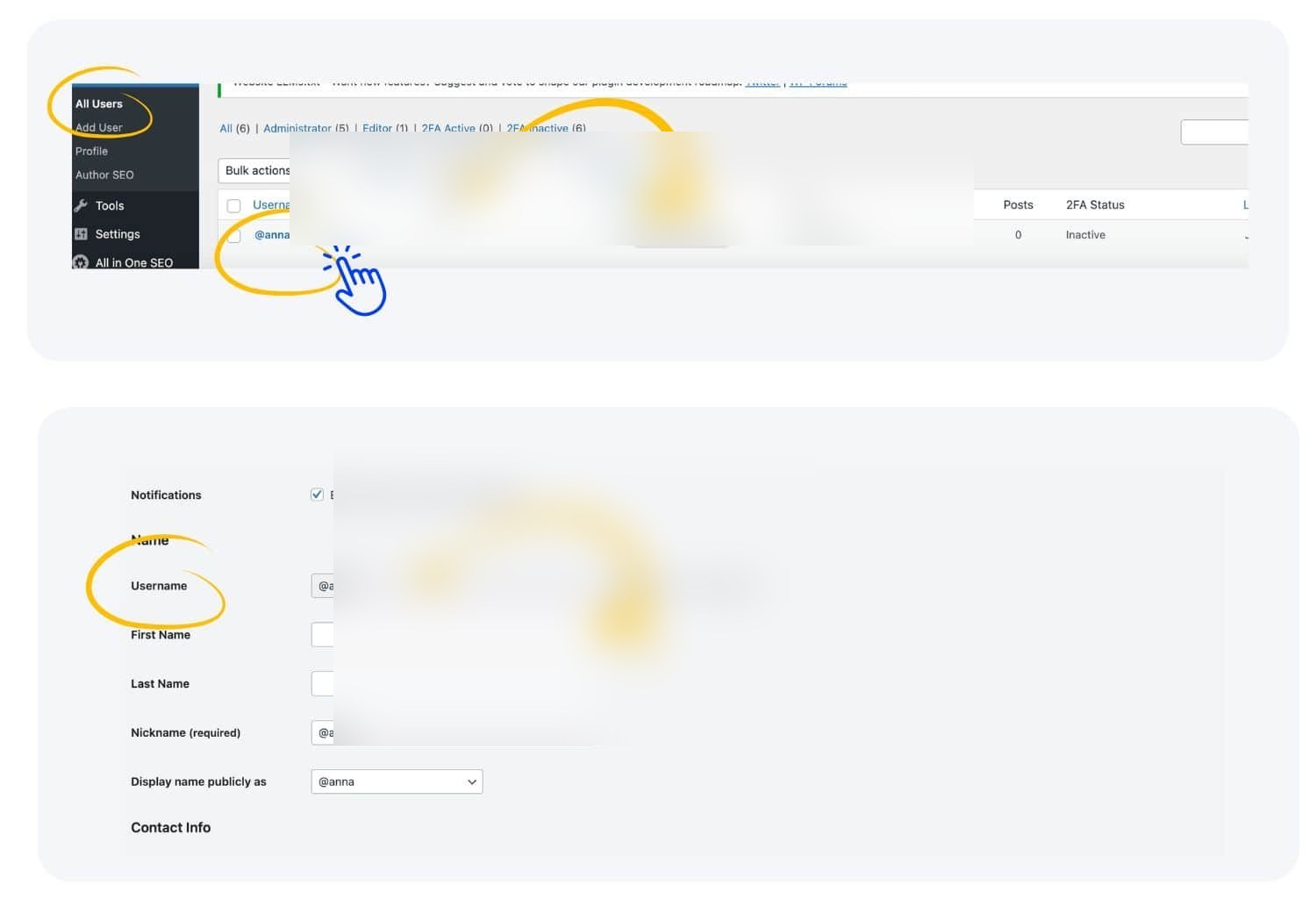
An Application Password is separate from the account's interactive login password. It can be revoked without changing the user's normal password, which makes it safer for an external integration. Never place it in article content, screenshots, tickets, analytics notes, or a shared spreadsheet.
Save the connection in NeuronWriter Project Settings
Open the WordPress integration in NeuronWriter Project Settings and enter the final site URL, username, and Application Password. Save the configuration after checking the protocol, hostname, and account spelling.
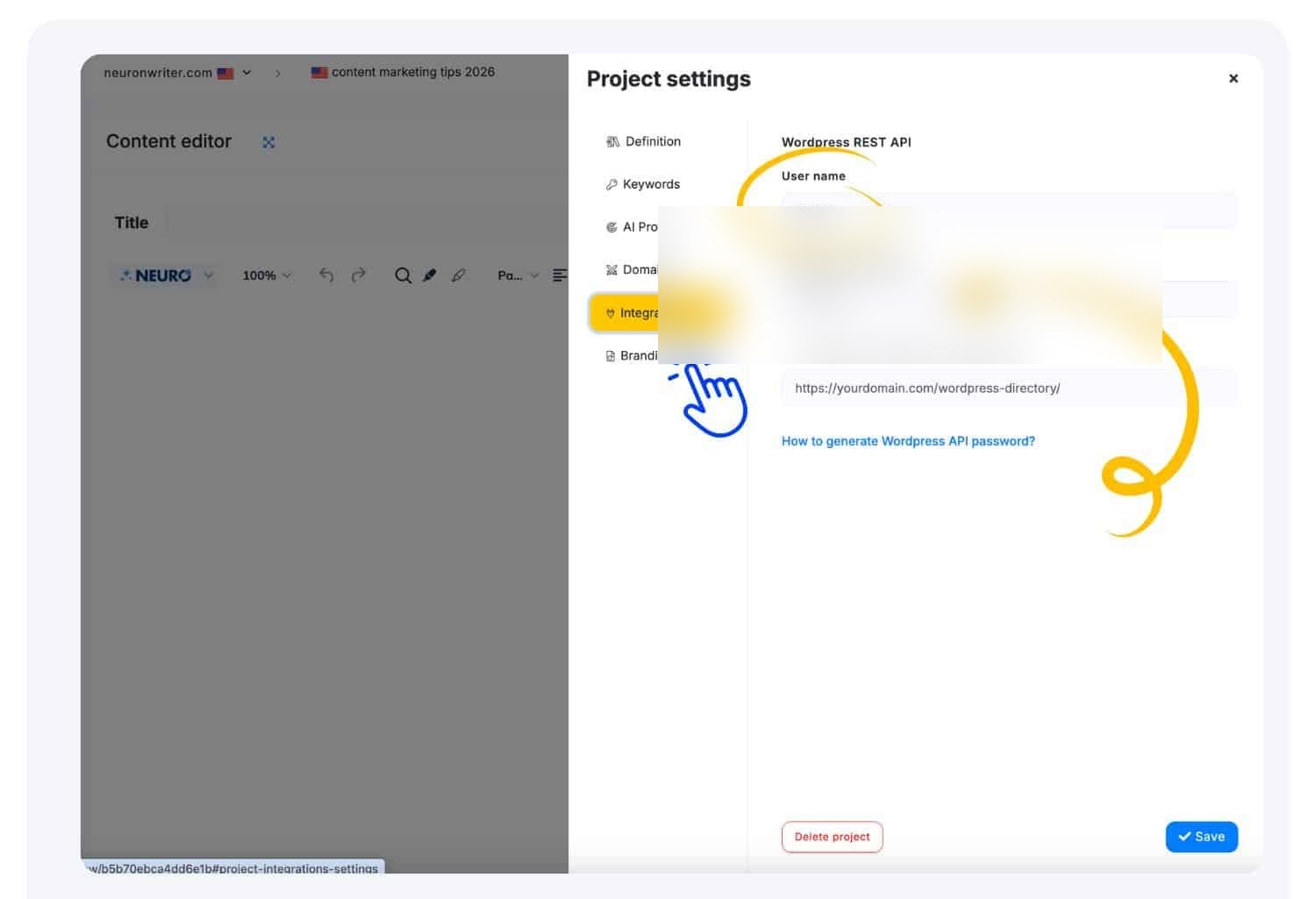
Current NeuronWriter documentation describes this direct credential setup. An older workflow or a specific configuration may show an additional WordPress-side step, so follow the instructions displayed in your account if they differ from the current FAQ.
Test the connection with a draft
Use a disposable draft to verify the connection before transferring a production article. Create a short NeuronWriter document containing an H2, H3, list, text link, and image. Export it with draft status, then inspect the WordPress editor.
The test should answer five questions:
- Did WordPress create the correct post type?
- Did headings and lists become editable blocks or usable HTML?
- Did images transfer to the Media Library or remain externally hosted?
- Did the category, author, and status match the selection?
- Did the theme and SEO plugin preserve the required fields?
Delete the test after documenting the result. Do not make the first connection test on a high-value published page.
How to Export a NeuronWriter Article to WordPress
Finish the editorial draft in NeuronWriter, open the WordPress action near Save in the editor, and export to the connected site as a draft. NeuronWriter's official FAQ places Import/Export controls on the editor's top bar.
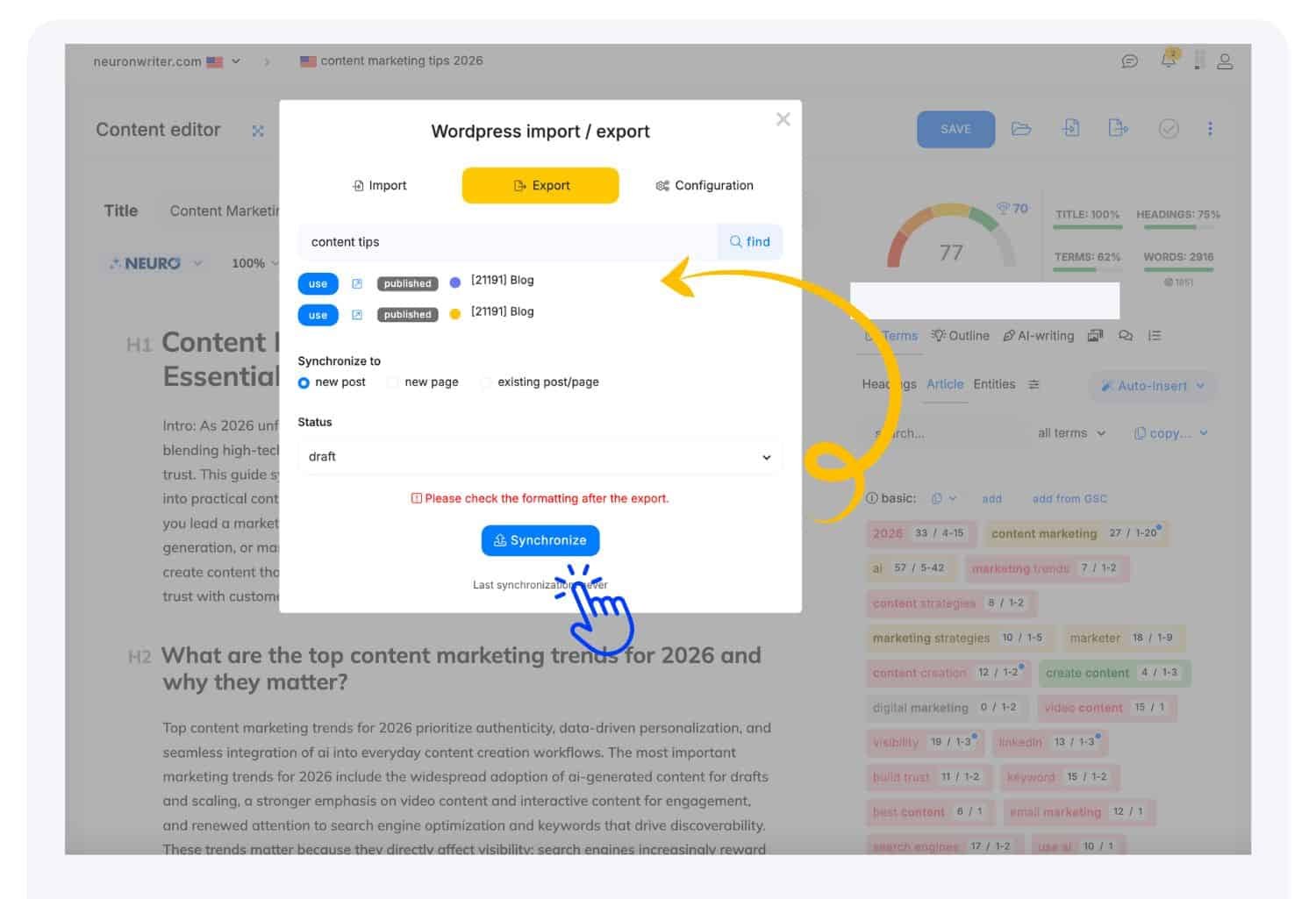
Use this export sequence:
- Confirm the article title and heading hierarchy.
- Remove notes, prompts, placeholders, and unsupported claims.
- Open WordPress from the Import/Export controls.
- Choose the connected site.
- Select the target post type and available taxonomy options.
- Choose Draft unless an approved workflow explicitly supports direct publishing.
- Export and open the resulting WordPress draft.
- Complete the post-transfer checklist before scheduling or publishing.
Direct publishing removes a review gate and can expose broken blocks, wrong categories, missing metadata, or externally hosted images. Draft-first publishing is slower by one click but safer for revenue pages, regulated topics, client sites, and multi-author teams.
How to Import an Existing WordPress Post into NeuronWriter
Use Import when a published or draft WordPress article needs a content refresh, SERP comparison, or topical coverage review. Open the WordPress action in the NeuronWriter editor, select Import, choose the connected site, and select the article.
Before editing, preserve a baseline:
- Current WordPress revision or backup.
- SEO title and meta description.
- Canonical URL.
- Category and tags.
- Featured image and in-content media.
- Internal and affiliate links.
- Structured data settings.
- Existing traffic, rankings, and conversion information.
Optimize the imported document around its existing canonical query. A higher NeuronWriter content score does not justify changing the page's intent, deleting useful first-hand evidence, or adding every recommended term. After editing, update the same WordPress post rather than creating a second URL that competes with it.
What Should You Check After Importing or Exporting?
Verify both the content and the WordPress implementation because a successful API response only confirms transfer. It does not confirm that the page is ready for search engines or readers.
| Area | Post-transfer check | Common risk |
|---|---|---|
| Gutenberg structure | Headings, paragraphs, lists, tables, quotes | Content arrives as one large block or malformed HTML |
| Images | Local Media Library URL, dimensions, ALT, caption | Hotlinked images, missing metadata, duplicate files |
| Internal links | Correct canonical targets and anchor context | Links point to staging, redirects, or planned pages |
| Affiliate links | Pretty Link route and sponsored attributes | Raw destination or missing nofollow sponsored |
| Taxonomy | Correct category, primary category, and tags | Wrong permalink or irrelevant archive association |
| Rank Math | SEO title, description, focus keyword, canonical, schema | Plugin-specific fields do not transfer |
| Author and status | Intended user and Draft status | Accidental publication or incorrect byline |
| Mobile rendering | Tables, images, callouts, and long URLs | Overflow or unreadable layout |
NeuronWriter's official article says SEO metadata can be preserved, but WordPress SEO plugins store many values in plugin-specific custom fields. Verify Rank Math fields directly. Also check TablePress shortcodes, ACF fields, reusable blocks, and custom schema because they are outside a standard post body's portable structure.
How Should Different Teams Use the Integration?
The best workflow depends on who owns optimization, editorial approval, and WordPress publishing. Define responsibilities before connecting multiple sites.
SEO specialists and marketers
Use WordPress Import to audit an existing page, then annotate recommendations by impact. Preserve pages that already satisfy their canonical query. Prioritize missing entities, weak decision support, outdated facts, and internal-link gaps instead of chasing a score.
Copywriters and content creators
Draft and optimize in NeuronWriter, export to WordPress as a draft, and complete visual formatting in Gutenberg. Writers should not need administrator access. A dedicated Author account is usually the better boundary.
Agencies and content teams
Create one documented connection owner per client site, use dedicated accounts, and keep an approval stage inside WordPress. Record which person owns research, optimization, legal or factual review, media, metadata, and final publication. Revoke the Application Password when a client relationship or team assignment ends.
SMBs and website owners
Use the integration if it reliably reduces repetitive publishing work. A lower-volume site may prefer Markdown or HTML export if REST API troubleshooting costs more time than copy and paste. The useful metric is not the number of integrations enabled; it is the number of safe publishing steps removed.
How to Fix Common NeuronWriter WordPress Connection Errors
Start with the HTTP status and exact REST API error instead of repeatedly regenerating credentials. NeuronWriter's troubleshooting documentation identifies permissions, security controls, URL mismatches, invalid responses, and server configuration as common causes.
| Error | Likely cause | First check |
|---|---|---|
401 rest_cannot_create | User cannot create posts or Application Passwords are blocked | User role and security plugin settings |
401 rest_forbidden_context | User cannot edit the requested post type or authorization is stripped | Capabilities and Authorization header handling |
| Response is not valid JSON | Firewall, CDN, login page, disabled REST API | Open /wp-json/ and inspect the response |
500 | Server-side PHP, plugin, database, or memory problem | WordPress and server error logs |
| Application Passwords missing | Old WordPress version, HTTP/local setup, or security plugin | WordPress version, HTTPS, plugin settings |
HTTP 401: rest_cannot_create
Confirm that the connected user can create posts and that the security layer permits Application Password authentication. NeuronWriter specifically recommends checking security plugins such as Wordfence. Verify that the username belongs to the same user profile that generated the Application Password.
Also confirm the project domain and protocol. Configure the final HTTPS domain rather than a URL that redirects elsewhere.
HTTP 401: rest_forbidden_context
Check whether the integration user can edit the requested post type and whether the server forwards the Authorization header to WordPress. Custom post types can have different capabilities from standard Posts and Pages.
NeuronWriter's troubleshooting page documents an .htaccess authorization rule as a possible fix when the web server strips the header. Back up .htaccess before changing it and ask the host to confirm the correct rule for the server. Do not paste a generic rewrite rule blindly into Nginx, IIS, or a managed platform that uses different configuration.
The response is not valid JSON
Inspect the raw REST API response because an HTML security page is not a WordPress JSON response. Cloudflare, hosting protection, login restrictions, maintenance plugins, and WordPress security plugins can intercept the request. Ask the protection layer to allow authenticated WordPress REST API traffic rather than disabling all security controls.
A publicly viewable homepage does not prove that /wp-json/wp/v2/posts is reachable and authenticated correctly.
HTTP 500 server error
Review server and WordPress logs because a 500 response indicates a server-side failure rather than a normal credential rejection. Check recent plugin changes, PHP errors, memory limits, database connectivity, custom REST filters, and hosting logs. Retry only after identifying the fault; repeated exports can create duplicate drafts if part of the request completed before the error appeared.
WordPress Application Passwords are missing
Update WordPress and check whether HTTPS or a security plugin is suppressing the Application Passwords section. WordPress core has included the feature since version 5.6. Some security products disable it by policy. Re-enable it only for the dedicated account and workflow if possible.
How to Secure the NeuronWriter WordPress Connection
Treat the Application Password as a revocable production credential. Apply these controls:
- Use HTTPS for the production connection.
- Create a dedicated user rather than sharing an administrator account.
- Start with Author privileges and increase them only when required.
- Name the Application Password so its purpose is visible during audits.
- Store it in a password manager during setup, not in documents or chat logs.
- Revoke and replace it after exposure or team changes.
- Export to Draft by default.
- Keep WordPress, themes, and plugins updated.
- Log unusual user and REST API activity when the site supports it.
- Restrict the connected site and user to the necessary workflow.
Do not publish screenshots containing the generated password. WordPress displays an Application Password only once for a reason.
Native Integration vs Chrome Extension vs API
Choose the native integration for standard import/export, the Chrome extension for in-editor recommendations, and the API for engineered automation. These methods solve different workflow problems.
| Method | Best for | Main advantage | Main limitation |
|---|---|---|---|
| Native WordPress integration | Writers and teams moving complete articles | Direct import/export with less copying | Requires GOLD or higher and a working REST API connection |
| Chrome extension | Writers optimizing inside WordPress, Google Docs, or Shopify | Recommendations appear in the existing editor | Browser-dependent and less suited to bulk automation |
| NeuronWriter API | Agencies and development teams building pipelines | Bulk queries and custom workflow control | Requires engineering, monitoring, and secure credential handling |
| Manual Markdown or HTML export | Low-volume or restricted sites | Simple and independent of REST authentication | More manual formatting and QA |
The native connection is the sensible default when an editorial team already uses NeuronWriter as the optimization workspace. The Chrome extension is useful when writers must remain inside WordPress. The API is appropriate when a team needs queues, status tracking, or custom publishing controls rather than a single export button.
Is the NeuronWriter WordPress Integration Worth Using?
The integration is worth using when repeated WordPress transfers create measurable editorial overhead and the team can maintain a secure REST API connection. It is particularly useful for agencies, multi-author sites, refresh programs, and teams that move many optimized drafts each month.
Skip or postpone the connection when the site is private, local-only, heavily restricted, or publishes so infrequently that manual export is simpler. The integration should reduce handoffs without removing approval. A safe workflow still requires a WordPress draft, visual QA, metadata checks, link verification, and a named publisher.
For buyers, WordPress connectivity should be evaluated alongside NeuronWriter's recommendation quality, query limits, collaboration features, and total plan cost. Review the NeuronWriter subscription option or check the available lifetime offer only after confirming that the plan includes the workflow your team needs.
FAQ
Does NeuronWriter integrate directly with WordPress?
Yes. NeuronWriter provides a native WordPress integration for GOLD and higher plans. It uses a WordPress username and Application Password to support importing existing content and exporting optimized content from the NeuronWriter editor.
Does NeuronWriter need a WordPress plugin?
Current official setup instructions describe a REST API connection configured with a username and Application Password in NeuronWriter Project Settings. Older documentation notes that some setups may present an additional WordPress-side step. Follow the current instructions shown in your NeuronWriter account.
Can NeuronWriter publish directly to WordPress?
NeuronWriter can export content to WordPress and provides publishing options, but Draft is the safer default. Review blocks, images, taxonomy, links, Rank Math metadata, canonical settings, and schema before publishing.
Which NeuronWriter plan includes WordPress integration?
NeuronWriter's official integration documentation lists GOLD and higher plans. Plan features can change, so confirm the current plan table before purchasing or upgrading.
Why does NeuronWriter return a 401 WordPress error?
A 401 response usually indicates missing permissions, blocked Application Password authentication, an incorrect username, a domain or protocol mismatch, or a stripped Authorization header. Check the user role, security plugin, exact HTTPS URL, and server configuration.
Can NeuronWriter connect to a localhost WordPress site?
A cloud service cannot normally reach a WordPress site available only at localhost or on a private computer. Use a publicly reachable HTTPS staging or production site with appropriate access controls.
Will Rank Math metadata transfer from NeuronWriter?
Do not assume that every Rank Math field will transfer. NeuronWriter states that SEO metadata can be preserved, but Rank Math uses plugin-specific fields for titles, descriptions, canonicals, focus keywords, and schema. Verify them in WordPress after every export workflow.
Does NeuronWriter sync WordPress in real time or on a schedule?
Current official documentation describes user-triggered Import and Export actions rather than continuous real-time synchronization. Teams that require scheduled or event-driven publishing should evaluate the NeuronWriter API, Zapier, or a controlled automation platform and retain a WordPress approval step.
Do I need coding skills to connect NeuronWriter to WordPress?
The native connection does not normally require coding because it uses Project Settings, a WordPress username, and an Application Password. Server or firewall troubleshooting may require help from a developer or hosting provider when authorization headers or REST API requests are blocked.
Is an Application Password the same as my WordPress login password?
No. An Application Password is a separate revocable credential for external applications. It can be deleted without changing the user's normal WordPress password and should never be displayed in public content.